

Setting Up Your Formlabs Form 3/3B
This page will allow you to learn the best practices to set up and use the Form 3/Form 3B and its Resin Tank, Build Platform, and resin dispensing system. Reference the quick link section to the right for specific procedures in the setup process.
Printer Components
Take a moment to get to know the different parts of your printer. These terms will be used regularly throughout support documentation. a
- Resin Cartridge
- Status light
- Cover
- Build Platform
- Resin Tank
- Touchscreen
- Status light
- Leveling disc

Unlocking the Light Processing Unit (LPU)
A latch secures the Light Processing Unit (LPU) within the printer during shipping. To release the LPU housing from its shipping position:
01
Locate the latch (A) on the LPU housing.

02
Loosen and remove the thumb screws (B) and LPU latch.
03
Store the thumb screws and latch with the original packaging. The LPU must be secured with the thumb screws and latch during any printer transportation.

Powering the Printer On
The first time the printer is connected to power, it will display a series of onboarding steps on the touchscreen. The onboarding steps include instructions for inserting consumables (resin tank, resin cartridge, and build platform) into the Form 3/Form 3B, additional details for which are given below. Follow these steps to prepare the Form 3/Form 3B for use.
Inserting the Resin Tank
The resin tank is the primary container for holding resin after it is dispensed from the cartridge. Resin is cured onto the build platform when the laser passes through the tank’s bottom film. To insert the resin tank:
01
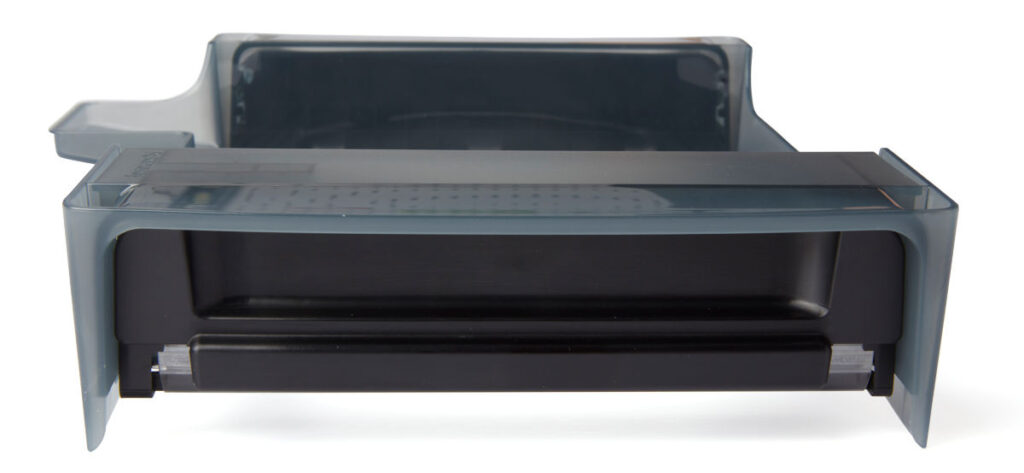
Lift the printer’s cover and remove the resin tank from its case.
02
Remove all packaging from the resin tank before inserting it into the printer, including the foam inside the resin tank that holds the mixer in place.

03
Align the resin tank side walls with the left and right tank carrier rails. The front and rear walls of the resin tank should hang over the ends of the rails and the tank’s resin fill spout should fit into the corresponding hole in the Z tower. The tank is not locked into place in this position but should sit flat and level.

04
Holding the side handles on the tank, gently push the tank down and forward until it locks into the rails and is flush against the back of the printer. You should not need to apply significant force. The printer will not properly detect the tank unless the tank is fully inserted
NOTE: If the printer is powered on, it will display a message on the touchscreen and play a notification sound once it detects the tank. The status light on the top of the printer and the logo on the front of the printer will also flash to show that a tank has been detected.
Insert the Mixing Arm
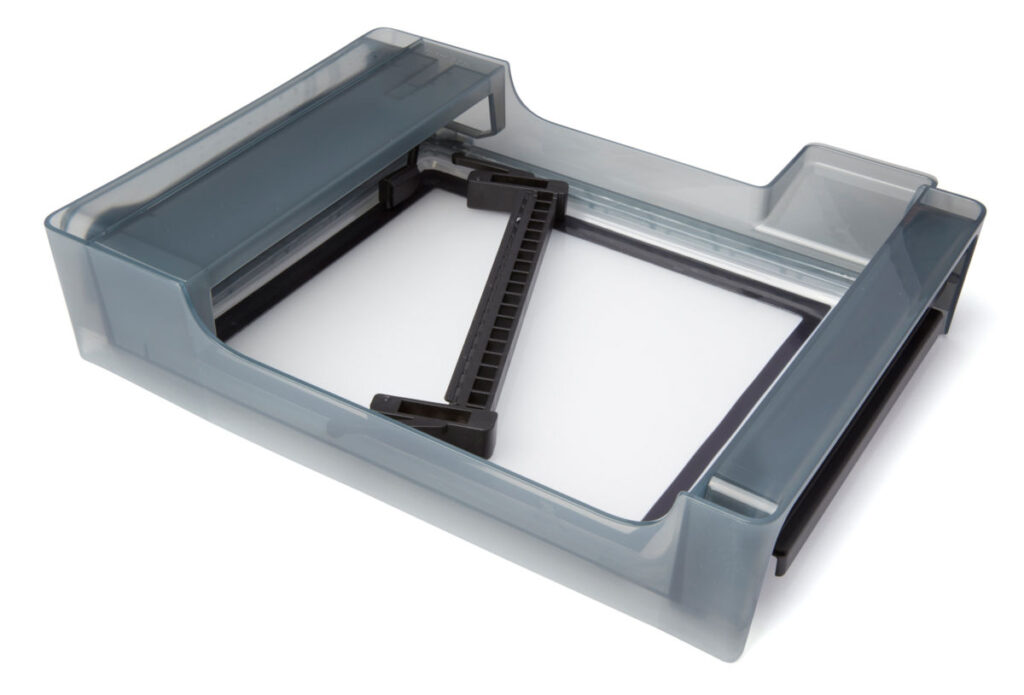
Each resin tank includes a mixer that improves print consistency by clearing the build area and circulating the resin. Scrapers on the top and bottom of the mixer clear the build platform and film, respectively. To insert the mixer:
01
Orient the mixer with the flexure arms facing upward and toward the float case on the left side of the tank. The magnets in the mixer should be facing down.
02
Slide the mixer to the left, into the float case, until the flexure arms on each end click into place.

Inserting the Build Platform
The build platform is the surface that each part prints onto. To insert the build platform:
- Lift the build platform carriage handle.
- Align the build platform with the build platform carriage and push into place.
- Lock the handle down to secure the build platform.
Preparing the Resin Cartridge
The resin cartridge stores resin to be dispensed into the resin tank. To prepare the resin cartridge:
- Shake the resin cartridge to ensure the resin is well-mixed.
- Shake the resin cartridge approximately every two weeks to keep the formula well-mixed for the best print quality.
- Remove the protective valve cover from the underside of the cartridge.
- Consider saving the cover to protect the valve during storage.

Inserting the Resin Cartridge
To insert the resin cartridge:
- Align the cartridge with the opening at the back of the printer.
- Push down on the cartridge handle until the top of the cartridge is level with the back shell of the printer.

- Press open the vent cap before starting a print so that the resin tank fills correctly.
