

Formlabs Error Messages for 3/3B and 3L/3BL
General Overview
The printer’s touchscreen displays error messages if the printer encounters any abnormalities and displays more details about the error. This page will cover warning messages along with what you will need to do when one presents itself on the Form 3/3B.
Diagnostic Logs
Formlabs printers maintain diagnostic logs to provide detailed information about the printer. Include these diagnostic logs with other relevant observations and details when contacting Formlabs Support or your authorized reseller to speed up resolution.
For printers connected to the internet over an active Wi-Fi or Ethernet connection:
- Tap the wrench icon on the bottom left of the printer’s Home screen. The Settings screen appears.
- Tap System. The System screen appears.
- Tap Upload Diagnostic Info. A confirmation message to upload diagnostic information appears.
- Tap Next to start the upload. A confirmation message appears when the upload is complete.
- If the printer displays an error message indicating that it cannot upload the logs, there may not be enough storage space on the printer for the upload. Delete print jobs from the Queue to clear enough storage space to upload the diagnostic logs.
- Restart the printer and try again.
For Printers Not Connected to the Internet:
- Open PreForm.
- Click File > Printers in the menu bar. The Printer List window appears.
- Select the printer’s serial name. The Printer Details window for the selected printer appears.
- Click Download Logs. A confirmation window appears.
- Click Browse to download the diagnostic logs to a preferred location on your computer.
- Click OK. The diagnostic logs save and appear in the encrypted FORMLOGS format.
- Attach the file when contacting Formlabs Support or your authorized reseller.
- If PreForm displays the message ERROR_BAD_STATE, there may not be enough storage space on the printer for the upload. Delete print jobs from the Queue to clear enough storage space to upload the logs.
- Restart the printer and try again.
Cartridge Dispense Error
The printer displays Cartridge Dispense Error if it tries to dispense resin but nothing comes out of the cartridge. Usually, this means the cartridge is empty. Each cartridge contains and can reliably dispense one liter of resin. After the full liter dispenses, dispose of the cartridge and continue printing with a new cartridge.
If a cartridge is not empty but the printer is unable to dispense resin, an issue with the cartridge may be preventing resin from dispensing:
- Check that the cartridge vent cap is open.
- Check the inside of the vent cap to ensure the vent is not blocked.
- Consider loosening the vent cap.
- Check the bite valve on the underside of the cartridge to make sure it opens when squeezed.
Cartridge Low
The printer checks the estimated amount of resin in the cartridge before starting each print. If the estimated resin supply isn’t enough to complete the part, the printer displays Cartridge Low.
Tap Ignore on the touchscreen to continue the print. However, if the printer runs out of resin in the middle of a print, it pauses until a new cartridge is inserted. Long print pauses can cause a horizontal line across printed parts. Consider swapping the low cartridge for a full cartridge before starting the print, or monitor the print closely and insert a new cartridge as soon as the current cartridge runs out of resin.
Resin Tank Overfilled
If the resin tank is overfilled, the printer will show this error. Use a syringe or small disposable cup to remove small amounts of resin, and pour it into a separate container. If the printer incorrectly warns of a resin tank overfill, check that the float can move freely and inspect the LevelSense board for damage.
Missing Resin Tank and Missing Cartridge Errors
If the printer does not detect an inserted tank or cartridge, check the ID chip on the resin tank or cartridge to ensure the chip is present and clean. A dirty or missing chip can prevent the printer from detecting the tank or cartridge.
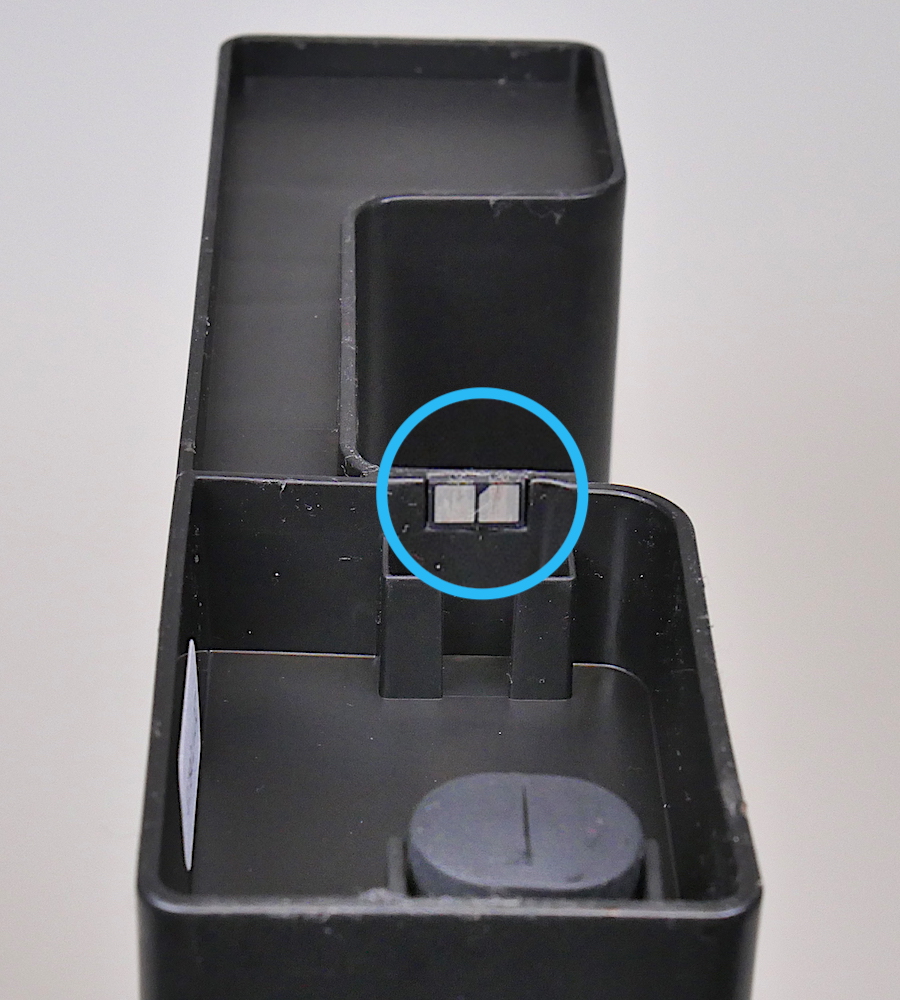
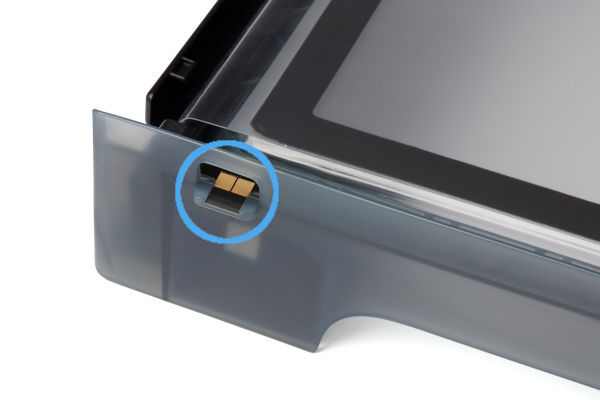
Fully remove and reinsert the resin tank or cartridge. The top of an inserted cartridge should be flush with the rear of the printer. A fully-inserted resin tank locks into the tank carrier rails and will be flush against the back of the printer.
Resin Tank and Cartridge Warning
The printer checks the resin type in the tank and cartridge to ensure they match the current print job. If they do not match the resin type identified in the print job, the printer displays Resin Tank and Cartridge Warning and prompts you to insert a tank and cartridge that match the print job settings.
Resin Tank Warning
If the resin cartridge is inserted first, the printer displays Resin Tank Warning when the type of resin in the tank does not match the cartridge. Remove the resin tank and replace it with one that matches the inserted resin cartridge. If the resin tank is unused and clean but has been programmed with the incorrect resin type, tap Ignore to reprogram the tank’s resin type.
Cartridge Warning
If the resin tank is inserted first, the printer displays Cartridge Warning when the type of resin in the cartridge does not match the tank. Remove the cartridge and replace it with the type of resin that matches the tank.
Motors Jammed
Sensors track the printer’s motor movements. If a motor does not return to its original position in the right amount of time, the printer displays Motors Jammed.
Anything in the path of a moving part may prevent the motor from moving properly. Open the cover to inspect the build platform and Light Processing Unit (LPU). Remove obstructions, then remove and reinsert the build platform and resin tank.
Heater Error
The printer stops heating if it cannot reach the target temperature of 30 °C (86 °F) after 60 minutes. In a cold operating environment, the printer may require more than one heating cycle to reach the desired temperature. Restart the print to begin heating again. For more information, refer to the support article Maintaining resin temperature.
Error 147
This error indicates that the printer was unable to move the tensioner system. Usually caused by a software issue, this can be resolved by restarting the printer and ensuring the firmware is up to date. If you see this error message repeatedly, contact Formlabs Support or your authorized reseller.
Cartridge Worn Out
Each cartridge contains and can reliably dispense one liter of resin. After the full liter dispenses, dispose of the cartridge and continue printing with a new cartridge. Restart the print once the depleted cartridge has been replaced.
Resin Level Sensor Error
The LevelSense board is located directly behind the resin tank. It senses the position of a metal float in the resin tank to determine the amount of resin in the resin tank. The printer may display Resin Level Sensor Error if there is an issue with the float or the LevelSense board.
If the printer displays Resin Level Sensor Error, follow each step to see if that step resolves the error:
- Ensure that the printer is level.
- Inspect the resin tank:
- Remove the resin tank.
- Check that the float can move freely.
- Reinsert and push the tank all the way back. The touchscreen displays a confirmation message when the resin tank is properly seated.
- Inspect the LevelSense board:
- Remove the resin tank.
- Inspect the LevelSense board.
- Contact Formlabs Support or your authorized reseller if you see damage.
- Recalibrate the LevelSense board:
- Tap the wrench icon on the printer’s touchscreen.
- Tap Maintenance.
- Tap Resin Level Calibration.
- Follow the on-screen instructions:
- Tap Next to start the calibration process.
- Remove the resin tank from the printer (if one is inserted) and tap Next.
- Close the printer cover and tap Calibrate.
- Once the calibration process is complete, tap Done.
- If the printer still displays the error, try a different resin tank. If the error does not occur with a different tank, the problem may be with the resin tank.
- If the error happens with all resin tanks, contact Formlabs Support or your authorized reseller.
Mixer Check Failure
At the start of each print, the LPU housing pulls the tank mixer back and forth across the tank film several times. This motion mixes the resin in the tank while also checking for cured resin on the film and on the build platform. If the mixer encounters cured resin blocking its path, its magnets decouple from the magnets in the LPU housing and the printer pauses the print. This is the designed behavior of the mixer and is intended to protect the tank film and prevent further print failures. If the printer displays Mixer Check Failure, follow these steps:
- Remove the build platform and inspect it for cured resin or other debris.
- Remove the resin tank and place it in its case.
- Reseat the mixer.
- Using the tank tool, inspect the resin tank film for cured resin or other debris.If you find any cured resin, remove it using the tank tool.
- Reinsert the resin tank and build platform.
- Restart the print.
If the Resin Tank is New and Unused:
- Remove the resin cartridge from the printer.
- Unscrew and remove the vent cap at the top of the resin cartridge.
- Carefully pour a small amount of resin from the resin cartridge into the resin tank, lightly coating the flexible film.
- Replace the vent cap.
- Insert the resin cartridge into the printer.
- Restart the print.
NOTICE: Do not use the part removal tool, scraper, flush cutters, or any other metal tool to inspect the resin tank or remove cured resin from the tank. Such tools may damage the tank film, leading to failed prints and/or a resin spill.
Printer Tilted
Formlabs SLA printers operate best when perfectly level. The touchscreen prompts you to level the printer when necessary. Tap Settings > Printer Leveling on the touchscreen to view the current level status. Follow the touchscreen prompts and use the leveling tool to level the printer.
Reset While Printing
If power to the printer is interrupted during a print job, the printer does not resume the print job when it restarts. The touchscreen displays Reset While Printing. If the reset was unexpected, contact Formlabs Support or your authorized reseller.
Wi-Fi Errors
The printer displays specific error messages depending on the Wi-Fi access point’s response to the connection attempt. Refer to the support article Connecting to your printer to set up a connection via Wi-Fi, USB, or Ethernet. Always check with a network administrator to ensure that the wireless network is configured to allow the printer to connect. For a Windows operating system, follow Apple’s instructions to ensure that Bonjour is properly installed. This step is required to connect. PreForm must be connected to the same network as the printer for wireless uploading.
Invalid Network Key
The password was not entered correctly. Check the network password. Check with a network administrator to ensure that the wireless network is configured to allow the printer to connect.
Connection Failed
The printer failed to configure the wireless connection and could not connect to the network. Check with a network administrator to ensure that the wireless network is configured to allow the printer to connect.
Factory Reset Instructions for Form 3/3B
On some occasions, a factory reset may correct unusual printer behavior. Unusual behavior may include Unknown Error messages, incomplete firmware updates, an unresponsive touchscreen, or trouble connecting to PreForm. A factory reset erases custom settings, including prints saved in the Queue and network connections.
NOTICE: A factory reset erases all print job information, custom settings, and diagnostic logs. Upload diagnostic logs before performing a factory reset.
- Unplug the printer.
- Reconnect the printer power cable.
- When the Formlabs logo appears, push and hold the reset button located underneath the USB port in the rear of the printer until Resetting to factory defaults appears on the touchscreen. You may need to use a paperclip or other small tool to push the reset button.
- Release the button.
- The touchscreen displays Factory reset complete before initializing the printer.

Factory Reset Instructions for Form 3L/3BL
On some occasions, a factory reset may correct unusual printer behavior. Unusual behavior may include Unknown Error messages, incomplete firmware updates, an unresponsive touchscreen, or trouble connecting to PreForm. A factory reset erases custom settings, including prints saved in the Queue and network connections.
NOTICE: A factory reset erases all print job information, custom settings, and diagnostic logs. Upload diagnostic logs before performing a factory reset.
- Unplug the printer.
- Reconnect the printer power cable.
- When the Formlabs logo appears, push and hold the reset button located underneath the USB port in the rear of the printer until Resetting to factory defaults appears on the touchscreen. You may need to use a paperclip or other small tool to push the reset button.
- Release the button.
- The touchscreen displays Factory reset complete before initializing the printer.

Quick Links
- Diagnostic Logs
- Cartridge Dispense Error
- Cartridge Low
- Resin Tank Overfilled
- Missing Resin Tank/Cartridge
- Resin Tank/Cartridge Warning
- Motors Jammed
- Factory Reset Directions Form 3L/3BL
- Heater Error
- Error 147
- Cartridge Worn Out
- Resin Level Sensor Error
- Mixer Check Failure
- Printer Tilted
- Reset While Printing
- Wi-Fi Errors
- Factory Reset Directions Form 3/3B