Before printing can begin, the printer must be completely level. This built-in check ensures that resin is dispensed correctly and the printer does not overfill the tank. Leveling may be necessary during the initial printer setup, or after moving the printer to another location.
Navigate To Leveling Procedure
First ensure your printer is on a stable level surface.
Next power on your printer and allow it to boot completely
Navigate through the screen to one of the following:
On a Form 2, tap the printer icon on the home screen. The Your Printer screen appears. Tap Settings > Printer Leveling.
On a Formlabs LFS printer (Form 3 and newer), tap the printer icon on the Home screen. Tap Settings > Maintenance > Printer Leveling.
Select Foot to Level
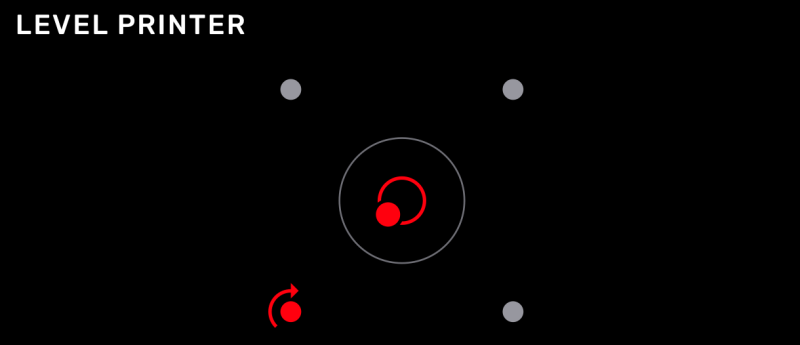
When the printer is not level, the dot at the center of the concentric rings shifts out of place. A printer foot is highlighted with an arrow indicating the direction to turn.
Raise or Lower the Leveling Foot
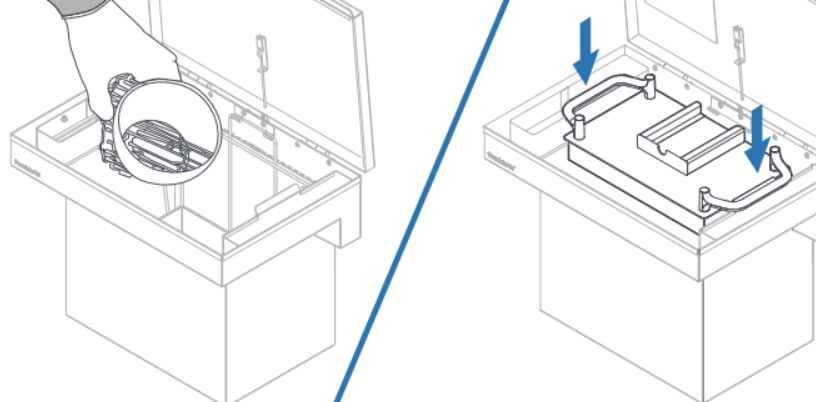
Slide the leveling disc included with your printer around the foot indicated on the printer’s touchscreen. Rotate the leveling disc clockwise to raise and counter-clockwise to lower each foot of the printer.
Note: For an absolutely perfect level, you may be required to adjust multiple feet.
Verify the Leveling Process
When the dot is at the center of the concentric rings and the four dots around it turn blue on the printer’s touchscreen, the printer is level.
The printer’s touchscreen displays error messages if the printer encounters any abnormalities and displays more details about the error. This page will cover warning messages along with what you will need to do when one presents itself on the Form 3/3B.
Diagnostic Logs
Formlabs printers maintain diagnostic logs to provide detailed information about the printer. Include these diagnostic logs with other relevant observations and details when contacting Formlabs Support or your authorized reseller to speed up resolution.
For printers connected to the internet over an active Wi-Fi or Ethernet connection:
Tap the wrench icon on the bottom left of the printer’s Home screen. The Settings screen appears.
Tap System. The System screen appears.
Tap Upload Diagnostic Info. A confirmation message to upload diagnostic information appears.
Tap Next to start the upload. A confirmation message appears when the upload is complete.
If the printer displays an error message indicating that it cannot upload the logs, there may not be enough storage space on the printer for the upload. Delete print jobs from the Queue to clear enough storage space to upload the diagnostic logs.
Restart the printer and try again.
For Printers Not Connected to the Internet:
Open PreForm.
Click File > Printers in the menu bar. The Printer List window appears.
Select the printer’s serial name. The Printer Details window for the selected printer appears.
Click Download Logs. A confirmation window appears.
Click Browse to download the diagnostic logs to a preferred location on your computer.
Click OK. The diagnostic logs save and appear in the encrypted FORMLOGS format.
Attach the file when contacting Formlabs Support or your authorized reseller.
If PreForm displays the message ERROR_BAD_STATE, there may not be enough storage space on the printer for the upload. Delete print jobs from the Queue to clear enough storage space to upload the logs.
Restart the printer and try again.
Cartridge Dispense Error
The printer displays Cartridge Dispense Error if it tries to dispense resin but nothing comes out of the cartridge. Usually, this means the cartridge is empty. Each cartridge contains and can reliably dispense one liter of resin. After the full liter dispenses, dispose of the cartridge and continue printing with a new cartridge.
If a cartridge is not empty but the printer is unable to dispense resin, an issue with the cartridge may be preventing resin from dispensing:
Check that the cartridge vent cap is open.
Check the inside of the vent cap to ensure the vent is not blocked.
Consider loosening the vent cap.
Check the bite valve on the underside of the cartridge to make sure it opens when squeezed.
Cartridge Low
The printer checks the estimated amount of resin in the cartridge before starting each print. If the estimated resin supply isn’t enough to complete the part, the printer displays Cartridge Low.
Tap Ignore on the touchscreen to continue the print. However, if the printer runs out of resin in the middle of a print, it pauses until a new cartridge is inserted. Long print pauses can cause a horizontal line across printed parts. Consider swapping the low cartridge for a full cartridge before starting the print, or monitor the print closely and insert a new cartridge as soon as the current cartridge runs out of resin.
Resin Tank Overfilled
If the resin tank is overfilled, the printer will show this error. Use a syringe or small disposable cup to remove small amounts of resin, and pour it into a separate container. If the printer incorrectly warns of a resin tank overfill, check that the float can move freely and inspect the LevelSense board for damage.
Missing Resin Tank and Missing Cartridge Errors
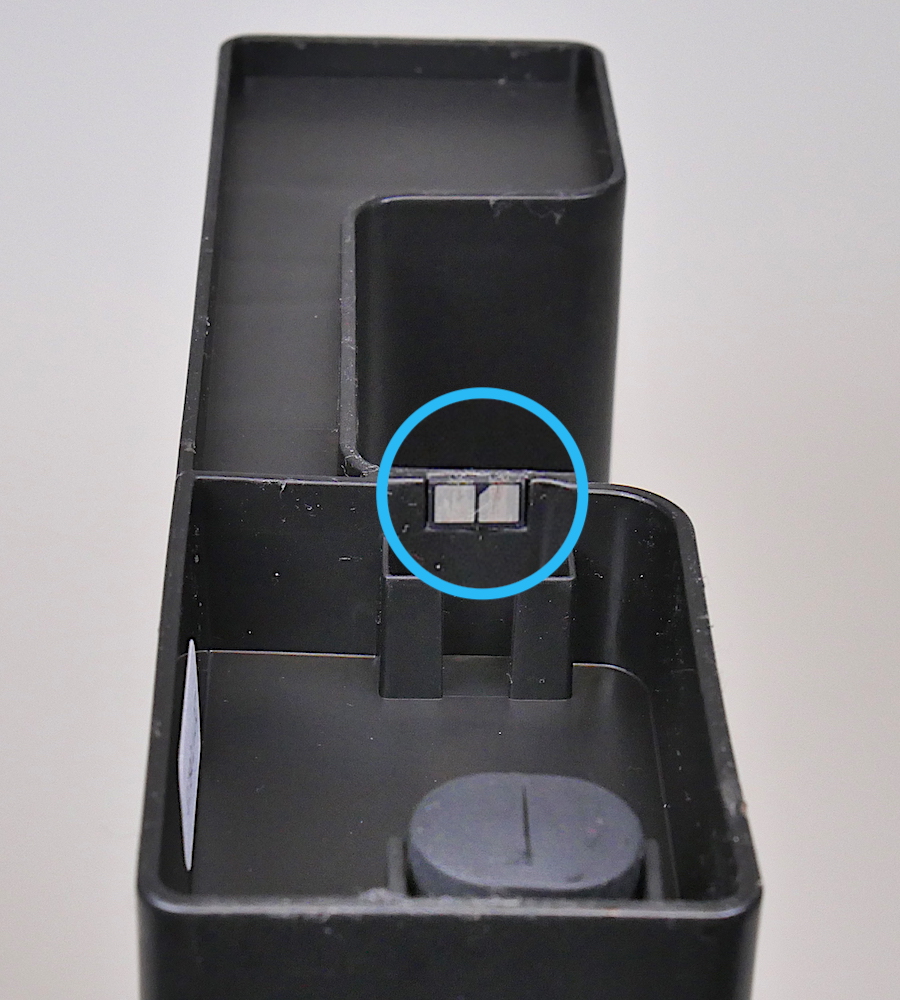
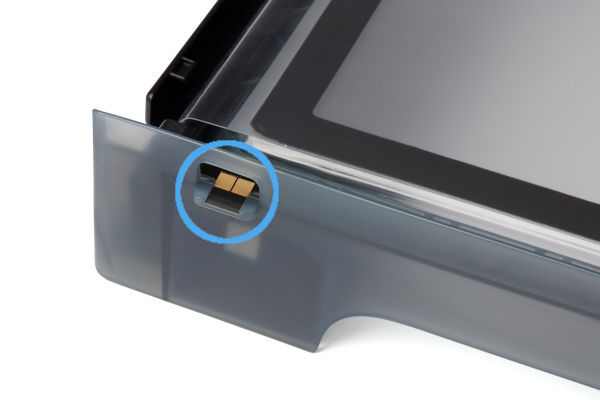
If the printer does not detect an inserted tank or cartridge, check the ID chip on the resin tank or cartridge to ensure the chip is present and clean. A dirty or missing chip can prevent the printer from detecting the tank or cartridge.
Resin cartridge chip location
Resin tank chip location
Fully remove and reinsert the resin tank or cartridge. The top of an inserted cartridge should be flush with the rear of the printer. A fully-inserted resin tank locks into the tank carrier rails and will be flush against the back of the printer.
Resin Tank and Cartridge Warning
The printer checks the resin type in the tank and cartridge to ensure they match the current print job. If they do not match the resin type identified in the print job, the printer displays Resin Tank and Cartridge Warning and prompts you to insert a tank and cartridge that match the print job settings.
Resin Tank Warning
If the resin cartridge is inserted first, the printer displays Resin Tank Warning when the type of resin in the tank does not match the cartridge. Remove the resin tank and replace it with one that matches the inserted resin cartridge. If the resin tank is unused and clean but has been programmed with the incorrect resin type, tap Ignore to reprogram the tank’s resin type.
Cartridge Warning
If the resin tank is inserted first, the printer displays Cartridge Warning when the type of resin in the cartridge does not match the tank. Remove the cartridge and replace it with the type of resin that matches the tank.
Motors Jammed
Sensors track the printer’s motor movements. If a motor does not return to its original position in the right amount of time, the printer displays Motors Jammed.
Anything in the path of a moving part may prevent the motor from moving properly. Open the cover to inspect the build platform and Light Processing Unit (LPU). Remove obstructions, then remove and reinsert the build platform and resin tank.
Heater Error
The printer stops heating if it cannot reach the target temperature of 30 °C (86 °F) after 60 minutes. In a cold operating environment, the printer may require more than one heating cycle to reach the desired temperature. Restart the print to begin heating again. For more information, refer to the support article Maintaining resin temperature.
Error 147
This error indicates that the printer was unable to move the tensioner system. Usually caused by a software issue, this can be resolved by restarting the printer and ensuring the firmware is up to date. If you see this error message repeatedly, contact Formlabs Support or your authorized reseller.
Cartridge Worn Out
Each cartridge contains and can reliably dispense one liter of resin. After the full liter dispenses, dispose of the cartridge and continue printing with a new cartridge. Restart the print once the depleted cartridge has been replaced.
Resin Level Sensor Error
The LevelSense board is located directly behind the resin tank. It senses the position of a metal float in the resin tank to determine the amount of resin in the resin tank. The printer may display Resin Level Sensor Error if there is an issue with the float or the LevelSense board.
If the printer displays Resin Level Sensor Error, follow each step to see if that step resolves the error:
Remove the resin tank from the printer (if one is inserted) and tap Next.
Close the printer cover and tap Calibrate.
Once the calibration process is complete, tap Done.
If the printer still displays the error, try a different resin tank. If the error does not occur with a different tank, the problem may be with the resin tank.
If the error happens with all resin tanks, contact Formlabs Support or your authorized reseller.
Mixer Check Failure
At the start of each print, the LPU housing pulls the tank mixer back and forth across the tank film several times. This motion mixes the resin in the tank while also checking for cured resin on the film and on the build platform. If the mixer encounters cured resin blocking its path, its magnets decouple from the magnets in the LPU housing and the printer pauses the print. This is the designed behavior of the mixer and is intended to protect the tank film and prevent further print failures. If the printer displays Mixer Check Failure, follow these steps:
Remove the build platform and inspect it for cured resin or other debris.
Unscrew and remove the vent cap at the top of the resin cartridge.
Carefully pour a small amount of resin from the resin cartridge into the resin tank, lightly coating the flexible film.
Replace the vent cap.
Insert the resin cartridge into the printer.
Restart the print.
NOTICE: Do not use the part removal tool, scraper, flush cutters, or any other metal tool to inspect the resin tank or remove cured resin from the tank. Such tools may damage the tank film, leading to failed prints and/or a resin spill.
Printer Tilted
Formlabs SLA printers operate best when perfectly level. The touchscreen prompts you to level the printer when necessary. Tap Settings > Printer Leveling on the touchscreen to view the current level status. Follow the touchscreen prompts and use the leveling tool to level the printer.
Reset While Printing
If power to the printer is interrupted during a print job, the printer does not resume the print job when it restarts. The touchscreen displays Reset While Printing. If the reset was unexpected, contact Formlabs Support or your authorized reseller.
Wi-Fi Errors
The printer displays specific error messages depending on the Wi-Fi access point’s response to the connection attempt. Refer to the support article Connecting to your printer to set up a connection via Wi-Fi, USB, or Ethernet. Always check with a network administrator to ensure that the wireless network is configured to allow the printer to connect. For a Windows operating system, follow Apple’s instructions to ensure that Bonjour is properly installed. This step is required to connect. PreForm must be connected to the same network as the printer for wireless uploading.
Invalid Network Key
The password was not entered correctly. Check the network password. Check with a network administrator to ensure that the wireless network is configured to allow the printer to connect.
Connection Failed
The printer failed to configure the wireless connection and could not connect to the network. Check with a network administrator to ensure that the wireless network is configured to allow the printer to connect.
Factory Reset Instructions for Form 3/3B
On some occasions, a factory reset may correct unusual printer behavior. Unusual behavior may include Unknown Error messages, incomplete firmware updates, an unresponsive touchscreen, or trouble connecting to PreForm. A factory reset erases custom settings, including prints saved in the Queue and network connections.
NOTICE: A factory reset erases all print job information, custom settings, and diagnostic logs. Upload diagnostic logs before performing a factory reset.
Unplug the printer.
Reconnect the printer power cable.
When the Formlabs logo appears, push and hold the reset button located underneath the USB port in the rear of the printer until Resetting to factory defaults appears on the touchscreen. You may need to use a paperclip or other small tool to push the reset button.
Release the button.
The touchscreen displays Factory reset complete before initializing the printer.
Factory reset button location
Factory Reset Instructions for Form 3L/3BL
On some occasions, a factory reset may correct unusual printer behavior. Unusual behavior may include Unknown Error messages, incomplete firmware updates, an unresponsive touchscreen, or trouble connecting to PreForm. A factory reset erases custom settings, including prints saved in the Queue and network connections.
NOTICE: A factory reset erases all print job information, custom settings, and diagnostic logs. Upload diagnostic logs before performing a factory reset.
Unplug the printer.
Reconnect the printer power cable.
When the Formlabs logo appears, push and hold the reset button located underneath the USB port in the rear of the printer until Resetting to factory defaults appears on the touchscreen. You may need to use a paperclip or other small tool to push the reset button.
Release the button.
The touchscreen displays Factory reset complete before initializing the printer.
Get ready to print with the Form 3L/Form 3BL. Learn best practices to set up and use the Form 3L/Form 3BL and its resin tank, build platform, and resin dispensing system.
Form 3L/3BL Components
1. Resin cartridge: Two containers hold the resin before dispensing into the resin tank. Shake the resin cartridges periodically to keep resin well mixed.
2. Cover: The printer lid, made of metal and a strong, orange-tinted material, blocks exposure to the lasers and protects the resin from curing due to ambient light.
3. Build platform: The aluminum base provides a surface for prints to attach to.
4. Resin tank: Resin is dispensed out of the resin cartridges into the resin tank. During a print, two lasers pass upwards through the flexible film and cure resin onto the build platform to form a printed part.
5. Mixer: Each resin tank includes a mixer that improves print consistency by clearing the build area and circulating the resin.
6. Touchscreen: The LCD capacitive touch user interface displays print information, settings, and error messages.
7. Leveling disc: Slide the leveling disc included around one of the leveling feet and rotate to raise or lower the printer.
8. Status light: Two interior lights (vertical strips along the left and right walls) and an illuminated logo (on the front panel) that pulse to indicate the printer is active, a print has completed, or the printer has encountered an error.
Turning On the Printer
To turn on and initiate the printer, follow these two steps.
Plug the included power cable into the power port on the back of the machine and connect the power cable to a power outlet.
The printer initiates automatically.
The first time the printer is connected to power, the touchscreen displays a series of onboarding steps. The onboarding steps include instructions for inserting consumables (resin tank, resin cartridges, and build platform) into the printer, additional details for which are given below. Follow these steps to prepare the printer for use.
Inserting the Resin Tank
Resin is dispensed out of the resin cartridges into the resin tank. During a print, two lasers pass upwards through the flexible film of the resin tank and cure resin onto the build platform to form a printed part.
The resin tank is the primary container for holding resin after it is dispensed from the cartridges. Resin is cured onto the build platform when the laser passes through the tank’s bottom film.
Open the printer cover.
Open the lid of the tank case.
Remove packaging materials from the resin tank.
Lift the resin tank with one hand on each side.
Add block
With the tank spout facing right, rest the front edge of the resin tank on the rails in the printer.
Push the resin tank forward, pressing evenly on both sides, until the resin tank reaches the back of the machine. The resin tank magnetically clicks into place. You should not need to apply significant force. The printer will not properly detect the resin tank unless it is fully inserted.
If the printer is turned on, the touchscreen displays a message, plays a notification sound, and the status lights pulse to show that a resin tank has been detected.
Installing the Mixer
Each resin tank includes a mixer that improves print consistency by clearing the build area and circulating the resin. Scrapers on the top and bottom of the mixer clear the build platform and flexible film, respectively. To install the mixer:
Open the printer cover.
Orient the mixer with its arms facing upward and toward the right side of the resin tank.
Place the mixer flat in the resin tank.
Push the mixer to the right edge of the resin tank until the magnets engage.
Installing the Build Platform
The build platform is the surface onto which parts are printed. It is secured in place on the build platform carriage during a print with the platform lock.
Raise the platform lock.
Align the build platform with the build platform carriage.
Push the build platform onto the build platform carriage. A sensor detects the build platform, and the status lights pulse.
Lower the platform lock to secure the build platform.
Installing the Resin Cartridges
Resin cartridges hold liquid resin before it is dispensed into the resin tank. Given the Form 3L’s build volume and the size of the resin tank, it uses two resin cartridges at once.
Close the printer cover.
Shake the resin cartridges before each print to ensure the resin is mixed thoroughly. Shake each resin cartridge approximately every two weeks during storage to keep resin well mixed for the best print quality.
Remove the protective valve cover from the bottom of each resin cartridge. Formlabs recommends saving the valve covers to protect the bite valves when storing the resin cartridges.
NOTE: Do not remove the flexible, rubber bite valves at the bottom of the resin cartridges. These bite valves control the release of the resin. Removing the bite valves allows resin to continuously flow and causes extreme damage to the printer. This damage is not covered by the warranty.
Align the resin cartridge with one of the two cartridge slots on the right side of the printer.
Place the resin cartridge into the slot. The resin cartridge fits into the slot in one orientation.
If the printer is turned on, the touchscreen displays a message, plays a notification sound, and the status lights pulse to show the resin cartridge has been detected.
Press the vent cap open, so that the resin tank fills correctly.
Place a second resin cartridge, with the same resin type and version, into the other slot.
Press the vent cap open on the second cartridge.
Next Steps
We have a wide variety of support articles available, and here you can see some commonly used resources. If this is your first time operating your printer we would recommend preform download and overview for your next steps.
Dry sanding, wet sanding, priming, painting parts (optional)
Removing Parts from the Printer
Always remove the build platform first, then remove the resin tank, as this will help to avoid dripping resin onto the glass optical window or into the printer cavity. Close the cover immediately after removing the platform to prevent ambient light from curing the liquid resin in the resin tank and potential contaminants like dust from entering the print area.
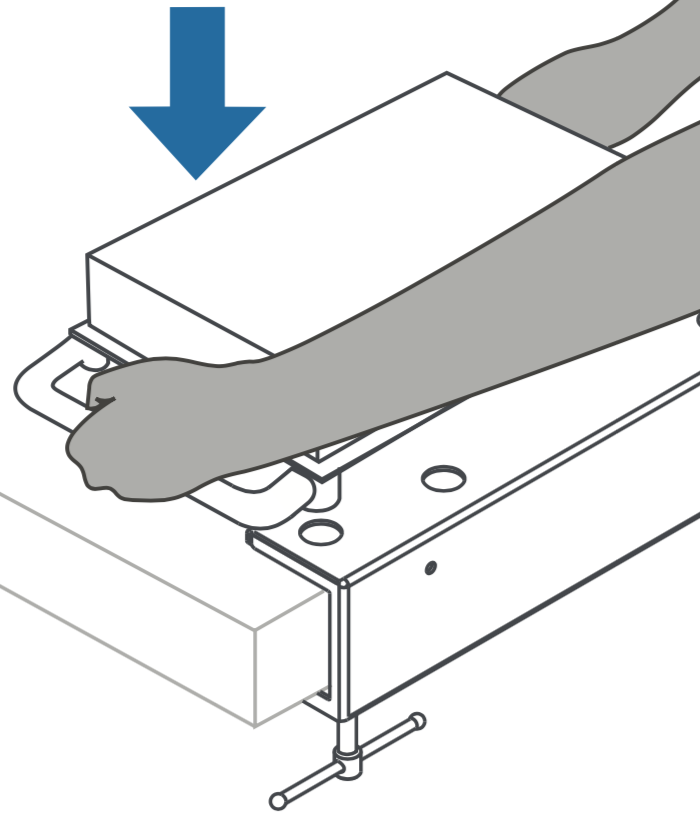
Secure the Build Platform on the Jig
Place the build platform on the jig included in the printer’s finish kit.
01
Form 2 and Form 3/3B
02
Form 3L and Form 3BL
Remove Parts from the Build Platform
To release parts from the build platform, slide a removal tool under the angled edge of the base. Depending on resin type and the geometry of each part, some parts may be easier to remove from the build platform than others.
Tools used to remove parts will scratch the metal surface of the build platform. Scratches are normal and improve part adherence during the initial layers of printing.
01
Form 2 and Form 3/3B
02
Form 3L and Form 3BL
Washing, Soaking, and Moving Parts in Solvent
Isopropyl alcohol (IPA) or tripropylene glycol monomethyl ether (TPM) dissolve liquid resin, making them effective for washing parts printed on Formlabs SLA printers. Two factors—simultaneously soaking and moving parts in solvent—work together to remove the thin layer of liquid resin from the surface of printed parts.
Whether using the Form Wash, Form Wash L, or another washing method, such as the Finish Kit, always consult the support article Form Wash time settings as the primary source of information for up-to-date wash times.
Move Parts In Solvent
Directions for Form 2 and Form 3/3B
Open the first rinse bucket and place the parts in the solvent bath. Use the rinse basket to shake the parts for 30 seconds. This removes liquid resin from the exterior surfaces.
Directions for the Form 3L and Form 3BL
Soak Parts in Solvent
Close the rinse bucket lid and let the parts soak for approximately half the total recommended time.
An easy printable guide for recommended times can be found here.
Repeat with a Second Rinse
Directions for the Form 2 and Form 3/3B
Move the parts to the second rinse bucket, then repeat the movement step, and soak the parts for the remaining time.
Directions for the Form 3L and Form 3BL
Move the parts to the second rinse bucket, then repeat the movement step, and soak the parts for the remaining time.
Drying Printed Pieces
Always let prints fully dry (whether they have been washed in IPA, TPM, or water) before post-curing or post-processing. Forced air, such as a fan or clean compressed air may dry parts more quickly.
For volatile solvents such as IPA, allow parts to dry for at least 30 minutes after washing to allow the solvent to fully evaporate from part surfaces. Ensure appropriate ventilation while the solvent evaporates.
For solvents that do not readily evaporate, such as TPM, let parts drip dry thoroughly and then rinse in water or IPA until all remaining TPM has dissolved.
Cleaning the Build Platform
Always scrape cured resin off the build platform before reusing it. If the next print uses the same type of resin, there is no need to remove liquid resin. Replace the build platform in the printer and start the next print.
If you are switching resin types, or if you do not plan to reuse the build platform right away, clean the build platform with IPA and paper towels to thoroughly remove liquid resin from the build surface and edges. Liquid resin cures in ambient light, and resin left on the surface of a build platform renders it unusable.
Post-Curing Pieces
Post-curing is optional for standard resins. Other resin types require post-curing to achieve their optical-mechanical properties.
Whether using the Form Cure, Form Cure L, or another post-curing solution, always consult the support article Form Cure time and temperature settings as the primary source of information for up-to-date post-cure settings.
Removing Supports
Formlabs recommends removing supports after post-curing, since parts may warp under exposure to light and heat without structural support.
Use the flush cutters included in the finish kit to carefully cut the supports attached to the parts. You may also use a scalpel or hobby knife to remove supports.
For parts with complex or delicate geometries, refer to the support article on advanced support removal.
Preform is the software provided by Formlabs that will convert your model file into machine directions to create your print. These machine instructions are produced automatically, based upon user configurable options. This page will go over the basics of setting up your machine settings, changing basic variables for print quality, and ensure successful prints using Formlabs products. More detailed guides and forms regarding post processes will be linked out to our OEM’s continually updated recommendations.
Download and Install
To install PreForm on your computer to use with a Fuse 1 printer:
Click the Download button for your computer’s operating system. An EXE or DMG file downloads.
Open your Downloads folder.
Double-click the file named Preform_setup to begin installing PreForm. A setup window opens.
Follow the prompts to finish installing.
Selecting a Printer in PreForm
When opening PreForm for the first time, a Virtual Printer is selected by default. Selecting a printer in PreForm allows you to send a new print job to the printer or to view the status of a current print job. To select a printer in PreForm:
Click the < button. The Job Info dialog box opens.
Click the printer name. The Job Setup window opens.
Click the Select Printer arrow. The Printer List window opens.
Click the name of a Printer you wish to select. The Printer Details window opens.
Click Select. The Job Setup window opens.
Click Apply. The selected Printer appears in the Job Info dialog box.
Update Firmware
Download the latest firmware version for your Formlabs SLA printer with PreForm, then upload and install the firmware file on the printer. Review the firmware release notes to learn more about the improvements that come with each version’s release.
Open PreForm.
Connect the printer to the computer via USB or wire the printer to an Ethernet network.
Click the < button. The Job Info dialog box opens.
Click the printer name. The Job Setup window opens.
Click the Select Printer arrow. The Printer List window opens.
Click on the name of a printer you wish to select. The Printer Details window opens.
Click Update in the upper-right corner of the Printer Details window. The Firmware Update window opens.
Follow the on-screen instructions to download the latest firmware and then upload the file to the printer. To upload firmware, the printer must be connected to the computer via USB or the printer must be wired to an Ethernet network.
The printer may automatically recognize you have sent a firmware update. Tap Continue on the printer’s touchscreen to finish the installation.
If you are not prompted to Continue, you must continue the firmware update manually:
On the touch screen, tap Settings > System > Firmware Update.
After the firmware update installs, confirm the system restart on the touchscreen or wait 30 seconds for an automatic restart.
Matching Materials in PreForm to the Inserted Resin Tank and Cartridge
Send a print job to the printer and confirm the print job on your printer’s touchscreen. The printer indicates whether the resin tank and cartridge currently inserted match the print job settings, and prompts you to change materials, if necessary. To change the materials selected in PreForm to the resin tank and cartridge currently inserted in your printer:
Click the < button. The Job Info dialog box opens.
Click the printer name. The Job Setup window opens.
Click the Select Printer arrow. The Printer List window opens.
Click the name of a Printer you wish to select. The Printer Details window opens.
Click Select. The Job Setup window opens.
Click the Resin field. A dropdown appears.
Select Current Printer Settings from the dropdown. The material matches what is currently inserted in the printer.
Loading a Model in PreForm
To open a single OBJ or STL file or multiple files to print on the same build platform:
Open PreForm.
In the menu bar, click File > Open. The Open File window appears.
Select at least one file.
To select multiple models, press and hold the command key on macOS or the CTRL key on Windows.
Click Open. The selected models appear in PreForm.
Moving and Rotating a Model in PreForm
Choosing which face of a model should point toward the build platform, and which face should point away, is a decision that affects more than just printability. The face that acts as a base is usually impacted the most by support marks that result in a rough surface finish. If preserving the fine details on your model is important, try orienting the model with that face away from the build platform.
Rotating a Model
Angle your model along the X, Y, and Z axes to orient it around the build platform.
Select the model. Manipulators are overlaid on the model.
Click Orientation. A dialogue box opens.
To rotate:
Click-and-drag along the sphere manipulator to spin the model freely.
Click-and-drag on a ring to move the model along that axis.
Enter a specific angle into an axis field.
Click on an axis arrow.
Hover the pointer over an axis field and use the scroll wheel
Moving a model
Move a model to a different location on the build platform to create space for other parts or to prolong the life of a tank.
Select the model. Manipulators are overlaid on the model.
To move:
Click-and-drag the Move manipulator to a new location on the build platform.
Click-and-drag the selected model to a new location on the build platform.
Positioning by Base
Layer thickness affects both the speed and quality of a print. Thicker layers print faster but sacrifices detail. Thinner layers print more slowly but are able to capture finer details. Most materials have a variety of layer thickness settings to choose from, so there’s always an option to suit your needs.
Select the model. Manipulators are overlaid on the model.
Click Orientation. A dialogue box opens.
Click Select Base…. A window opens and the pointer appears as an orange arrow.
Click a face of the model to point it toward the build platform.
Click Done. The window closes.
Adjusting Layer Thickness in PreForm
Selecting Resin and Layer Thickness
Preserve the fine details of your model by facing the smaller features away from the build platform. To choose which side faces the build platform:
Layer Thickness is measured in fractions of a millimeter, often given in microns. 1 micron (µm) is equal to 0.001 of a millimeter (mm). To provide a sense of scale, 100 microns is the same thickness as a sheet of paper or a human hair. To set the Layer Thickness:
Click the < button. The Job Info dialog box opens.
Click the printer name. The Job Setup window opens.
Click the Resin field to select a material from the dropdown.
Click the Version field to select a version from the dropdown.
Drag the Layer Thickness slider to the desired thickness.
Click Apply. The selected material and layer thickness settings are applied.
NOTE: Support will be generated differently depending upon material and layer thickness.
Effect of Layer Thickness On Printed Parts
Effect of layer thickness on parts with supports. Effect of layer thickness on parts without supports.
Selecting Adaptive Layer Thickness
Adaptive layer thickness is a setting that balances speed and quality to give you the best of both worlds. When PreForm detects curves, slants, and other features that would be negatively impacted by thicker layers, it processes these features into thinner slices. When PreForm detects walls, columns, and other verticals that can be printed in a single, large piece it automatically increases the layer thickness. PreForm transitions smoothly from one layer setting to another so there are no sudden jumps in thickness.
Layer Thickness is set to Fixed by default. Selecting the Adaptive setting automatically changes the layer thickness throughout a print job based on the geometry between layers. To switch to Adaptive layer thickness:
Click the < button. The Job Info dialog box opens.
Click the printer name. The Job Setup window opens.
Click the Resin field to select a material from the dropdown.
Click the Version field to select a version from the dropdown. A Fixed and Adaptive toggle appears.
Click Adaptive. The Adaptive Layer Thickness notification appears.
Click Apply. The selected material and layer thickness settings are applied.
NOTE: Support will be generated differently depending upon material and layer thickness.
One-Click Print Options
When orienting and supporting a model, keep in mind that a model has several correct orientations. Clicking One-Click Print shifts models between these different orientations and supports them accordingly. To orient and support a model with One-Click Print in PreForm:
Click the < button. The Job Info dialog box opens.
Click the name of a Printer. The Job Setup window opens.
Click the Resin field to select a material from the dropdown.
Click the Version field to select a version from the dropdown.
Drag the Layer Thickness slider to the desired thickness.
Click Apply. The selected material and layer thickness settings are applied.
Click the One-Click Print icon. The One-Click Print dialog box opens.
Click Set up your print. The model is oriented and supported, then the Print window opens.
Click the Select Printer arrow. The Printer List window opens.
Click the name of a Printer. The Printer Details window opens.
Click Select. The Print window opens.
Click the Job Name field. Enter a new name or view the existing name.
Click Upload Job. The model is sent to the printer.
Generating Support Structures
Supports are the cornerstone of a successful SLA print—they hold the model in place throughout the entire printing process. Support structures reinforce overhangs and other delicate features. Adding more supports increases the likelihood of print success, but also increases the amount of post-processing work. Support structures can be generated automatically or adjusted manually per model.