

Leveling Formlabs 3D Printers
General Overview
Before printing can begin, the printer must be completely level. This built-in check ensures that resin is dispensed correctly and the printer does not overfill the tank. Leveling may be necessary during the initial printer setup, or after moving the printer to another location.
Navigate To Leveling Procedure
- First ensure your printer is on a stable level surface.
- Next power on your printer and allow it to boot completely
- Navigate through the screen to one of the following:
- On a Form 2, tap the printer icon on the home screen. The Your Printer screen appears. Tap Settings > Printer Leveling.
- On a Formlabs LFS printer (Form 3 and newer), tap the printer icon on the Home screen. Tap Settings > Maintenance > Printer Leveling.
Select Foot to Level
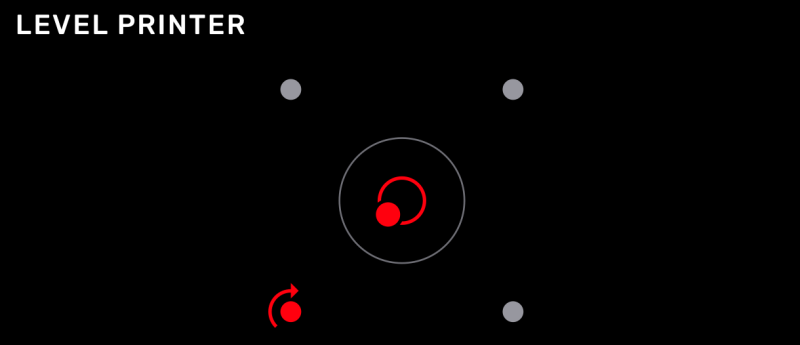
When the printer is not level, the dot at the center of the concentric rings shifts out of place. A printer foot is highlighted with an arrow indicating the direction to turn.
Raise or Lower the Leveling Foot
Slide the leveling disc included with your printer around the foot indicated on the printer’s touchscreen. Rotate the leveling disc clockwise to raise and counter-clockwise to lower each foot of the printer.
Note: For an absolutely perfect level, you may be required to adjust multiple feet.
Verify the Leveling Process
When the dot is at the center of the concentric rings and the four dots around it turn blue on the printer’s touchscreen, the printer is level.
