
Categories
3D Printing

2026 Professional 3D Printer Buyers Guide

2026 3D Printer Buyers Guide | Dynamism

With over 20 years of experience in hardware , Dynamism helps engineers, labs, and manufacturers select the right additive technology for their application not just buy a printer. Use this 3D printer buyers guide to compare the three most common professional processes: material extrusion, vat photopolymerization, and powder bed fusion.


Choosing the wrong process is the most common and costly mistake in additive manufacturing. This 3D printer buyers guide breaks down each technology’s fundamental tradeoffs, cost, material capability, surface finish, and throughput, so you can make the right call before you buy.

Material Extrusion

A strand of thermoplastic filament is drawn through a heated nozzle. A motion system guides the nozzle to deposit layers one at a time. One of the most economical and material-diverse processes in additive manufacturing.

Best For: Functional prototypes, tooling, engineering-grade thermoplastics, education, high-volume throughput

Typical surface finish: Moderate layer lines visible, can be post-processed

Vat Photopolymerization

More commonly referred to as SLA or DLP. A build plate is lowered into a vat of photocurable resin where layers are cured from a light source below. Known for sharp edges, fine details, tight tolerances, and minimal visible layer lines.

Best for: Medical devices, dental, high-detail prototyping, casting patterns, biocompatible parts

Typical surface finish: Excellent, near-isotropic properties, smooth surfaces

Powder Bed Fusion

Layers of powdered material are deposited fractions of a millimeter at a time. The material is then melted and fused using a heat source — typically a laser or electron beam. No support structures required; excellent for complex geometries.

Best for: Low-volume production, complex geometries, nylon and PA materials, functional end-use parts, metal

Typical surface finish: Good, slightly grainy, highly consistent mechanical properties


MakerBot — Education & Classroom 3D Printers

MakerBot Sketch Sprint 3D Printer

MakerBot Sketch Sprint

Best for Classrooms

Print Volume: 220 × 220 × 220 mm³

MakerBot Sketch 3D Printer

Makerbot Sketch

Best for K-12 Classrooms

Print Volume: 150 × 150 × 150 mm³

UltiMaker — Professional & Industrial 3D Printers

Ultimaker Factor 4 Plus 3D Printer

UltiMaker Factor 4 Plus

Industrial-grade hardware optimized for high-speed production

Print Volume: 330 × 240 × 300 mm³

Ultimaker Method XL 3D Printer

UltiMaker Method XL

Best for Industrial Applications

Print Volume: 305 × 305 × 320 mm³

UltiMaker S6 Pro Bundle 3D Printer

UltiMaker S6 Pro Bundle

Best for Higher Education & Engineering-Grade Materials

Print Volume: 330 × 240 × 300 mm³

Available with glass build plate or flexible build plate.

UltiMaker S8 Pro Bundle 3D Printer

UltiMaker S8 Pro Bundle

Best for Industrial Prototyping & Tooling

Print Volume: 330 × 240 × 300 mm³

Bambu Lab — Professional & Enterprise 3D Printers

Bambu Lab P2S Combo 3D Printer

Bambu Lab P2S Combo

Best for Professional & High-Volume Users

Print Volume:

256 × 256 × 256 mm³

Bambu Lab H2D Pro 3D Printer

Bambu Lab H2D Pro

Best for Secure & Professional Environments

Print Volume:

(Single) 256 × 256 × 256 mm³  (Dual) 300 × 320 × 325 mm³

Bambu Lab H2D Combo 3D Printer

Bambu Lab H2D Combo

Best for Multi-Material 3D Printing
Print Volume:

(Single) 325 × 320 × 325 mm³

(Dual) 300 × 320 × 325 mm³

Bambu Lab H2D Laser Combo 3D Printer

Bambu Lab H2D Laser Combo 10/40W

Best for Multi-Functional Creations

Print Volume: 325 × 320 × 325 mm³

Laser cutter & engraver (10W and 40W options)

Bambu Lab H2S Combo 3D Printer

Bambu Lab H2S Combo

Best for Large Format + Engineering-Grade Materials

Print Volume: 340 × 320 × 340 mm³

Bambu Lab H2S Laser Combo 3D Printer

Bambu Lab H2S Laser Combo

Best for Large Format + Laser Cutting & Engraving

Print Volume: 340 × 320 × 340 mm³

Bambu Lab H2C 3D Printer

Bambu Lab H2C

Best for Multi-Color & Multi-Material (Minimal Waste)

Print Volume: 300 × 320 × 325 mm³

Bambu Lab H2C Laser Combo 3D Printer

Bambu Lab H2C Laser Combo 10/40W

Best for Advanced Multi-Material + Laser

Print Volume: 300 × 320 × 325 mm³


Large Format Material Extrusion 3D Printers (FFF/FDM)

BigRep — Industrial Large Format 3D Printers

BigRep ONE.5X 3D Printer

BigRep ONE.5X

Best for Engineering-Grade, High-Resolution Applications

Print Volume: 1005 x 1005 x 1005 mm³

BigRep VIIO250 3D Printer

BigRep VIIO250

Best for Automated, High-Temp Production Workflows

Print Volume: 1000 × 500 × 500 mm³

BigRep ALTRA 280 3D Printer

BigRep ALTRA 280

Best for high-temperature engineering polymers and aerospace/defense-grade production parts.

Print Volume: 500 × 700 × 800 mm³

Modix — Budget Extra Large Format 3D Printers

Modix BIG-60 V4 3D Printer

Modix BIG-60 V4

Best for large-format prototyping and end-use parts on a budget

Print Volume: 600 × 600 × 660 mm³

Modix BIG-120X V4 3D Printer

Modix BIG-120X V4

Best for wide-format for automotive/large flat parts

Print Volume: 1200 × 600 × 640 mm³

Modix BIG-120Z V4 3D Printer

Modix BIG-120Z V4

Best for large vertical parts

Print Volume: 600 × 600 × 1200 mm³


Vat Photopolymerization 3D Printers (SLA / DLP)

Formlabs — Professional Resin 3D Printers

Formlabs Form 4L SLA 3D Printer, Formlabs Cure, & Formlabs Wash

Formlabs Form 4L Complete Package

Best for Large Prints

Print Volume: 353 × 196 × 350 mm³

Formlabs Form 4BL SLA 3D Printer, Resin Tank and Resin Mixer

Formlabs Form 4BL Basic Package

Best for Large Format Rapid Medical Device Design

Print Volume: 353 × 196 × 350 mm³

Formlabs Form 4B SLA 3D Printer and Form Wash (2nd Gen.)
Form Cure (2nd Gen.)

Formlabs Form 4B Complete Package

Best for Rapid Medical Device Design

Print Volume: 200 × 125 × 210 mm³


SLA Post Processing Accessories

Formlabs — Wash & Cure Post Processing Accessories

Formlabs Form Cure V2 Unit for SLA post processing

Formlabs Form Cure V2

Best for Fast Curing

Print Volume: 200 × 125 × 205 mm³

Formlabs Form CureL V2 Unit for SLA post processing

Formlabs Form Cure L V2

Best for Fast Curing Large Prints

Print Volume: 423 × 423 × 365 mm³

Formlabs Form Wash Unit for SLA post processing

Formlabs Form Wash V2

Best for Automated Precise Uncured Resin Removal

Print Volume: 315 × 293 × 405 mm³

Formlabs Form WashL V2  Unit for SLA post processing

Formlabs Form Wash L V2

Best for Automated Resin Removal on Large Prints

Print Volume: 780 × 460 × 670 mm³


Powder Bed Fusion 3D Printers (SLS / Metal)

Formlabs — Benchtop SLS 3D Printers

Formlabs SLS Bundle wtih Fuse 1 +30 3D printer and sift unit

Formlabs Fuse 1+ 30W Printer Package

Best Benchtop SLS Solution

Print Volume: 330 × 240 × 300 mm³

Formlabs SLS Bundle wtih Fuse X1 SLS 3D Printer

Formlabs Fuse X1

Best Large Format SLS Solution

Print Volume: 330 × 330 × 565 mm³


SLS Post Processing Acessories

Formlabs — SLS Post Processing Accessories

Formlabs SLS Fuse Blast Unit

Formlabs Fuse Blast

Function: Fully automated cleaning and polishing for SLS parts

Formlabs Fuse Depowdering Kit

Formlabs Fuse Depowdering Kit

Function: All-in-one manual post processing solution

Formlabs Fuse Sift Unit

Formlabs Fuse Sift X1

Function: Powder recovery station that keeps your SLS workflow clean and efficient. A sealed glovebox, automated powder transport, and compressed air system handle post-print processing without the mess .

AMT PostPro Vapor Smoother & SLS Post Processing Accessories

Formlabs Fuse 1 +30 SLS 3D printer, Fuse blast and Sift Unit, and AMTPost Pro vapor blast unit

AMT PostPro SFX SLS Workflow Bundle

Best for Complete SLS 3D Printing & Post Processing

Print Volume: 190 × 320 × 190 mm³

AMT PostPro SFX Complete Bundle

Best for Small-Scale Production & R&D (Full Kit)

Print Volume: 190 × 320 × 190 mm³

3D Scanners

Shining 3D Handheld 3D Scanners

Einstar 2

Entry level handheld scanner

EinScan Rigil

Hybrid Scanning

Matter and Form Desktop 3D Scanner

Matter and Form THREE 3D Scanner

Best for Education


Laser Engravers & Cutters

xTool Laser Engraver & Cutting Units

xTool F2 Ultra Deluxe Bundle

Best for Micro Metal Engraving

Working Area: 220 × 220 mm

xTool P3 Laser Engraver

Best for Businesses, Schools & Professional-Grade Results

Working Area: 915 × 458 mm

Frequently Asked Questions

Questions Dynamism’s application engineers hear most often when helping buyers find the right technology. This 3D printer buyers guide is updated for 2026.

Where do 3D printing models come from?

Almost all CAD modeling programs export an .STL file, which can then be read and 3D printed using a slicing program. CAD modeling programs are not traditionally included in a 3D printer purchase, but free options exist for beginners. Dynamism also offers a range of 3D scanners to digitize physical objects. There are many online repositories with hundreds of thousands of ready-to-print models available for download.

What is a slicing program?

A slicing program tells the 3D printer what to do. It takes the model file and slices it into hundreds of layers, each with specific instructions (toolpath) for the machine to produce that layer. Most desktop 3D printers include a free slicing program.

How fast are 3D printers?

Print speed varies significantly by technology, material, part quality, part size, and infill amount. Small models can take hours; medium to large designs can take days. Contact Dynamism Sales for specific print time estimates on your model — email sales@dynamism.com or call 1-800-711-6277.

What is DMOD — Dynamism Manufacturing On Demand?

DMOD is Dynamism’s in-house on-demand 3D printing service. Send a file, get professional parts — without owning hardware. Dynamism engineers handle the prototyping process with your needs and confidentiality in mind. DMOD is ideal for prototyping, bridge production, benchmarking new materials, and scaling to full production.

What 3D printing training does Dynamism offer?

Dynamism offers 1-on-1 Online Training covering FFF/FDM, SLA, and slicing are available at both basic and advanced levels. Training is designed to get your team operating confidently and is available on-site or remote. Sessions can be tailored to your specific printer and workflow.

Why choose Dynamism over buying direct from a manufacturer?

A printer manufacturer can only sell you their own machine, regardless of whether it’s the right process for your part. Dynamism selects from a full portfolio of technologies and brands, so the recommendation is driven by your application, not a single vendor’s inventory. Our engineers install on-site, train your team, and return for repairs and check-ins. One partner across FFF, resin, metal, and large-format, as your needs evolve, you scale with someone who already knows your operation.


Download the full 2026 Professional 3D Printer Buyers Guide as a free PDF.

Categories
3D Scanning

3D Scanning Workflow
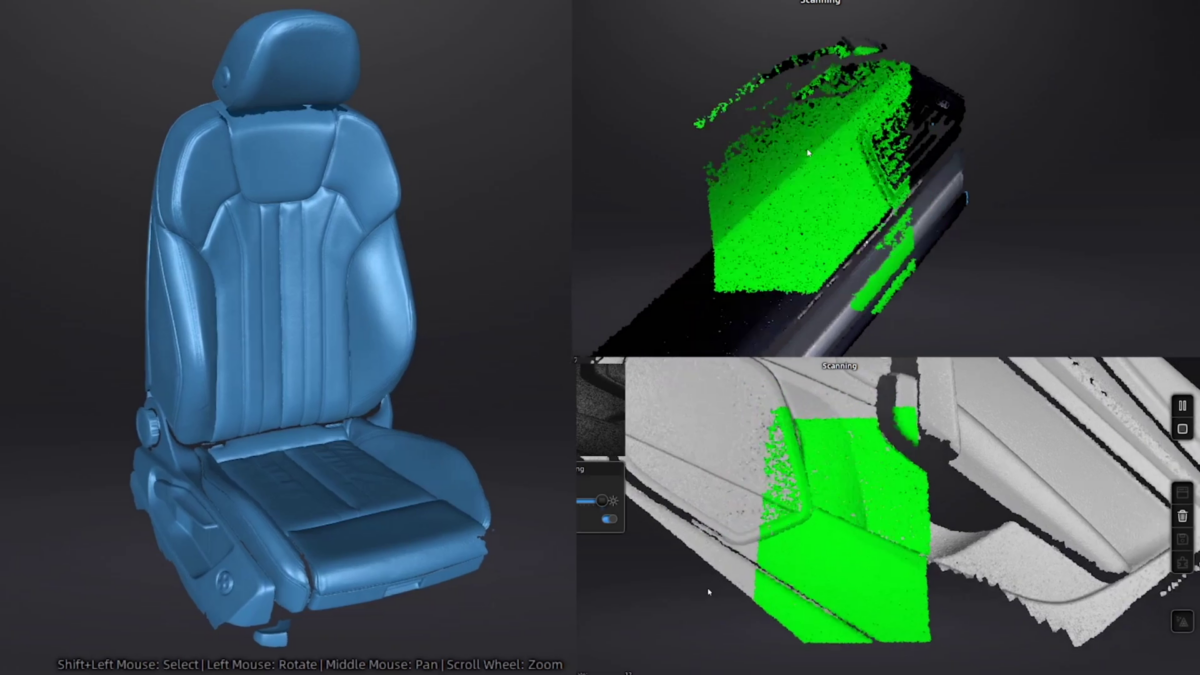
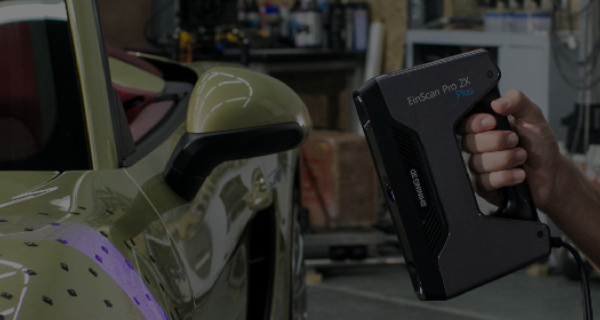
3D scanners are useful tools for professionals in a number of applications, including reverse engineering, ensuring part fit within existing designs, inspections, digitizing historical artifacts, and scanning of faces for dental and orthodontic applications. 

In this guide you will learn the 3D scanning process from start to finish using Shining3D’s new handheld EinScan HX 3D scanner.

Required Tools & Materials

Other Required Components

  • (x1) A computer capable of running the software
    • Win 10, 64bit
    • NVIDIA GTX1080 and higher
    • 4G of Video Memory
    • Processor:I7-8700
    • 32GM of Memory
    • 960 Cuda Cores (1000+ recommended)
  • (x1) of the Recommended Scanning Softwares
    • Geomagics Essentials
    • Solid Edge
  • Calibration Board and 3D Scanner Targets
  • Putty or Plah-Doh
  • 3D Scanning Spray or Powder

EinScan HX

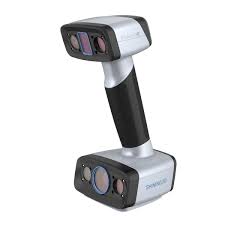
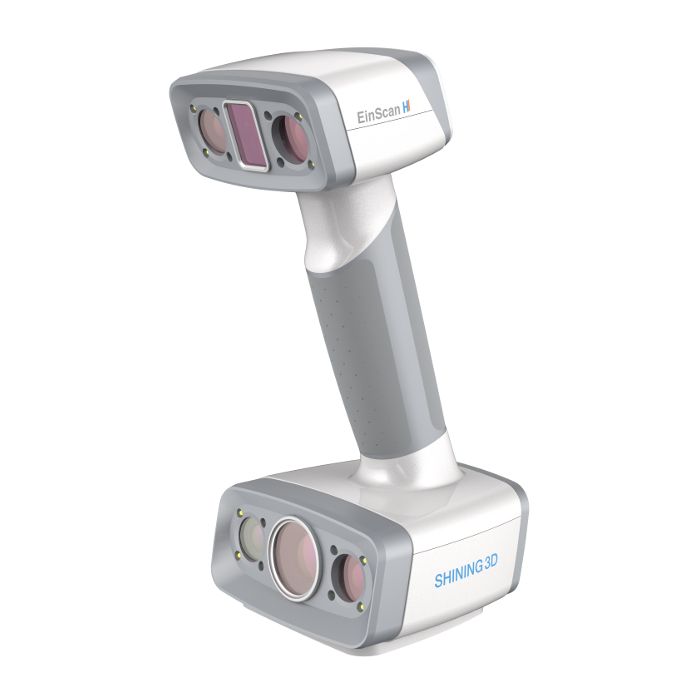
The EinScan HX Reverse Engineering Design Bundle provides hybrid blue laser and LED light scanning, providing a solution for surfaces that are difficult to scan with traditional white LED technology.
Learn more >

EinScan H

The EinScan H provides hybrid infrared and LED light scanning for scanning hair (normally not possible with previous scanning technology) and a wider range of object size compatibility.

Learn more >

1. Calibrate the Scanner (If Required)

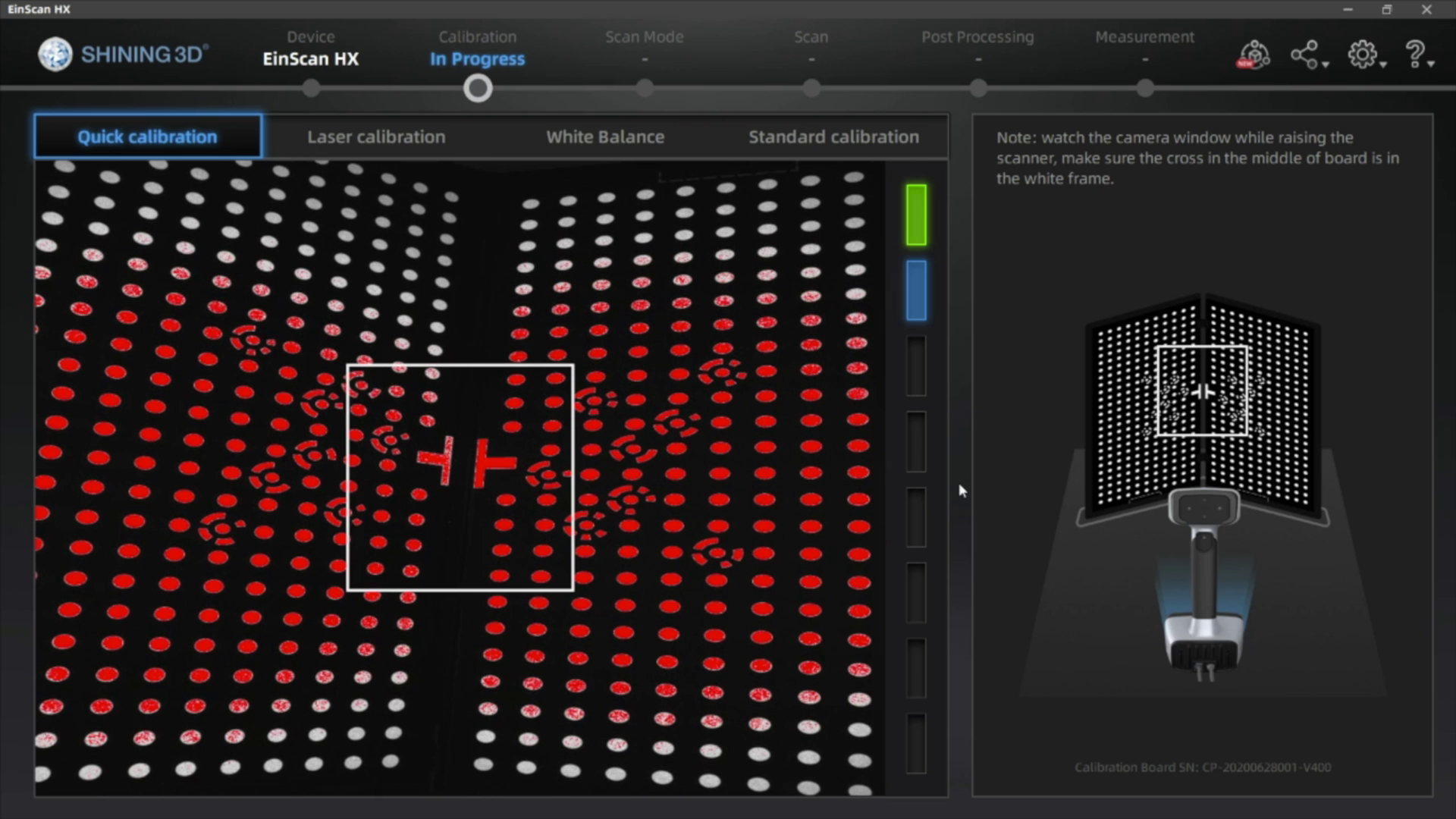
The EinScan scanners require calibration before their first use, as well as after each software update. If calibration is necessary, use your included calibration board and follow the calibration directions as outlined in the software.
Image

2. Model Preparation

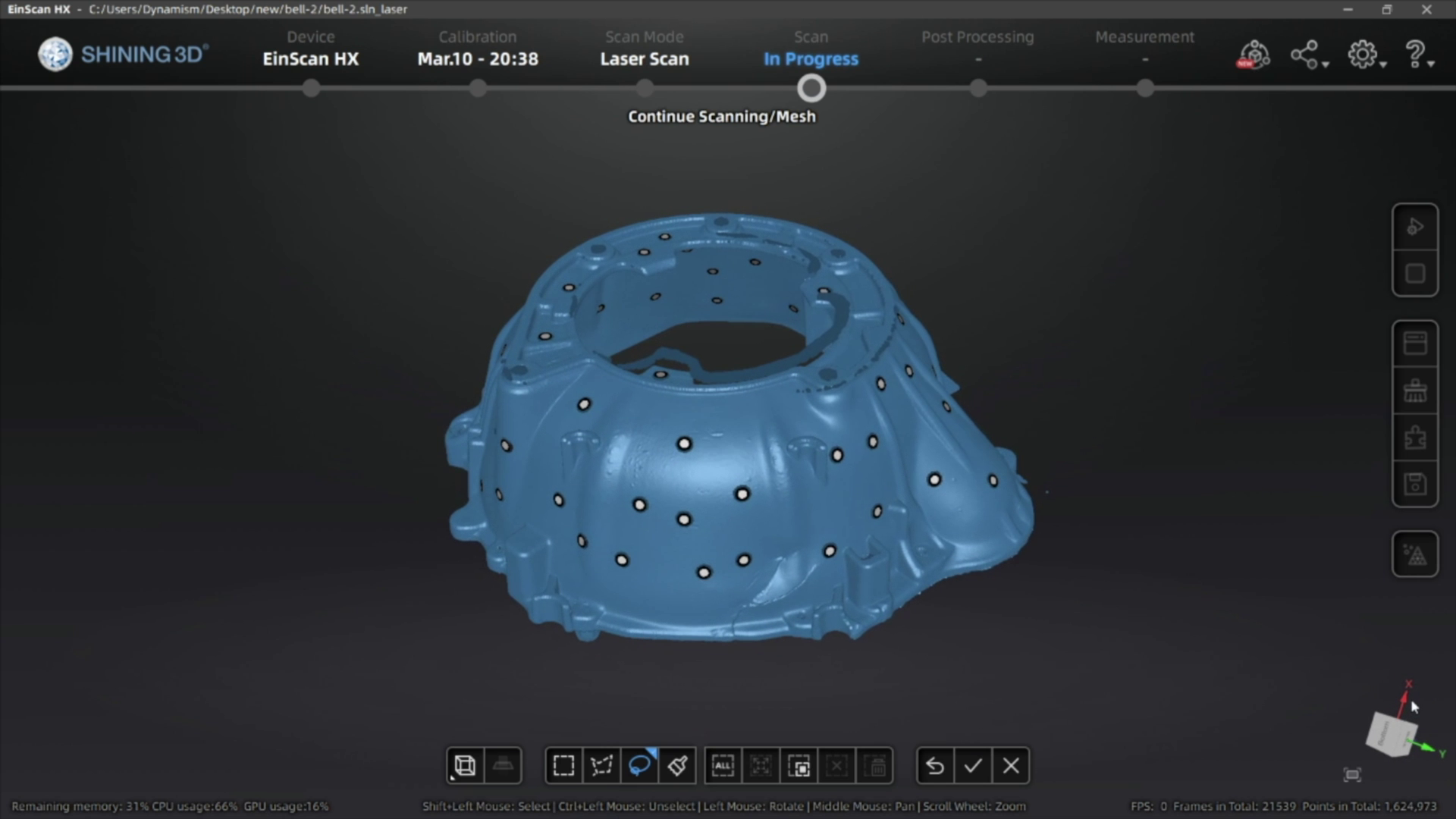
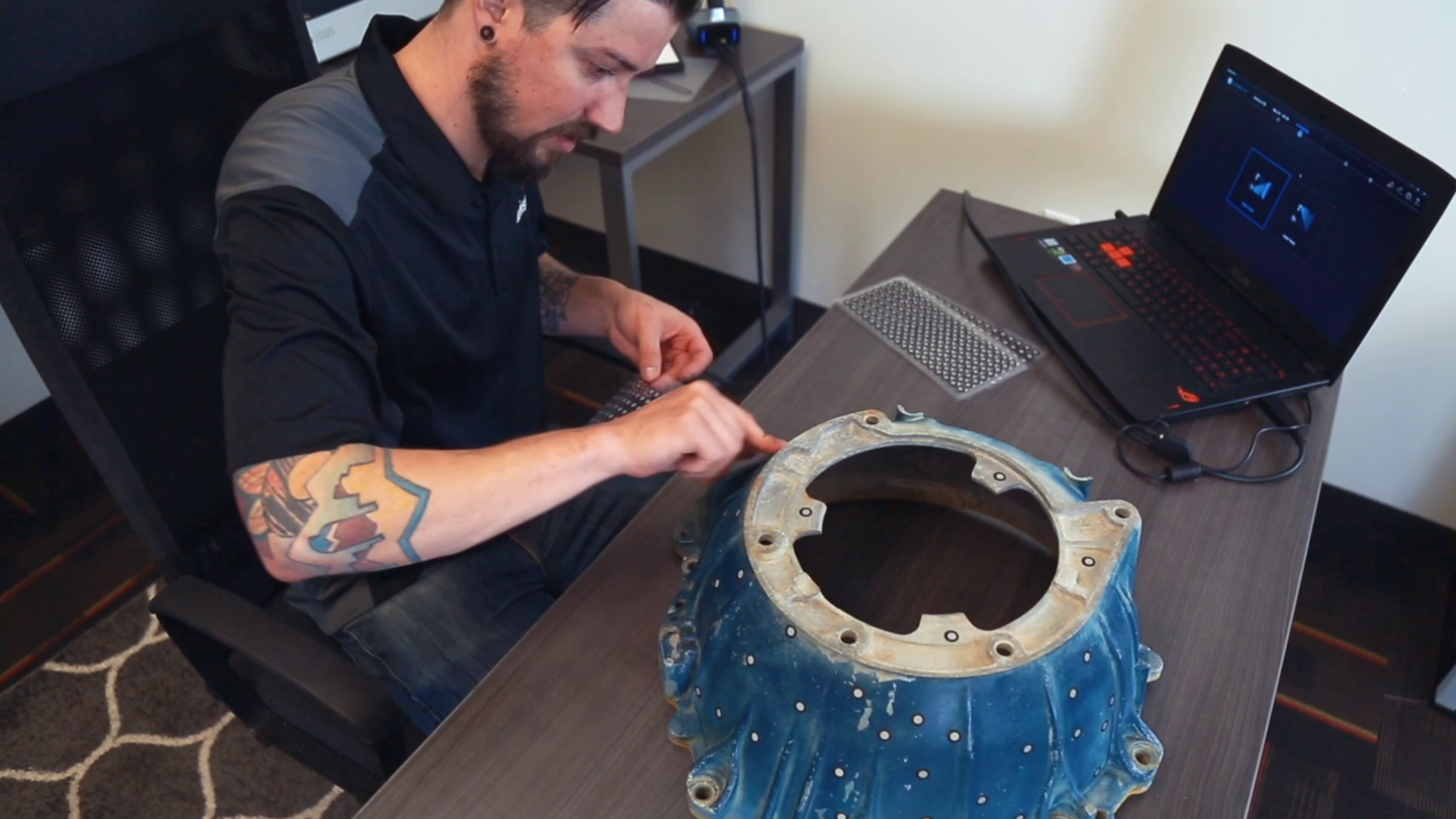
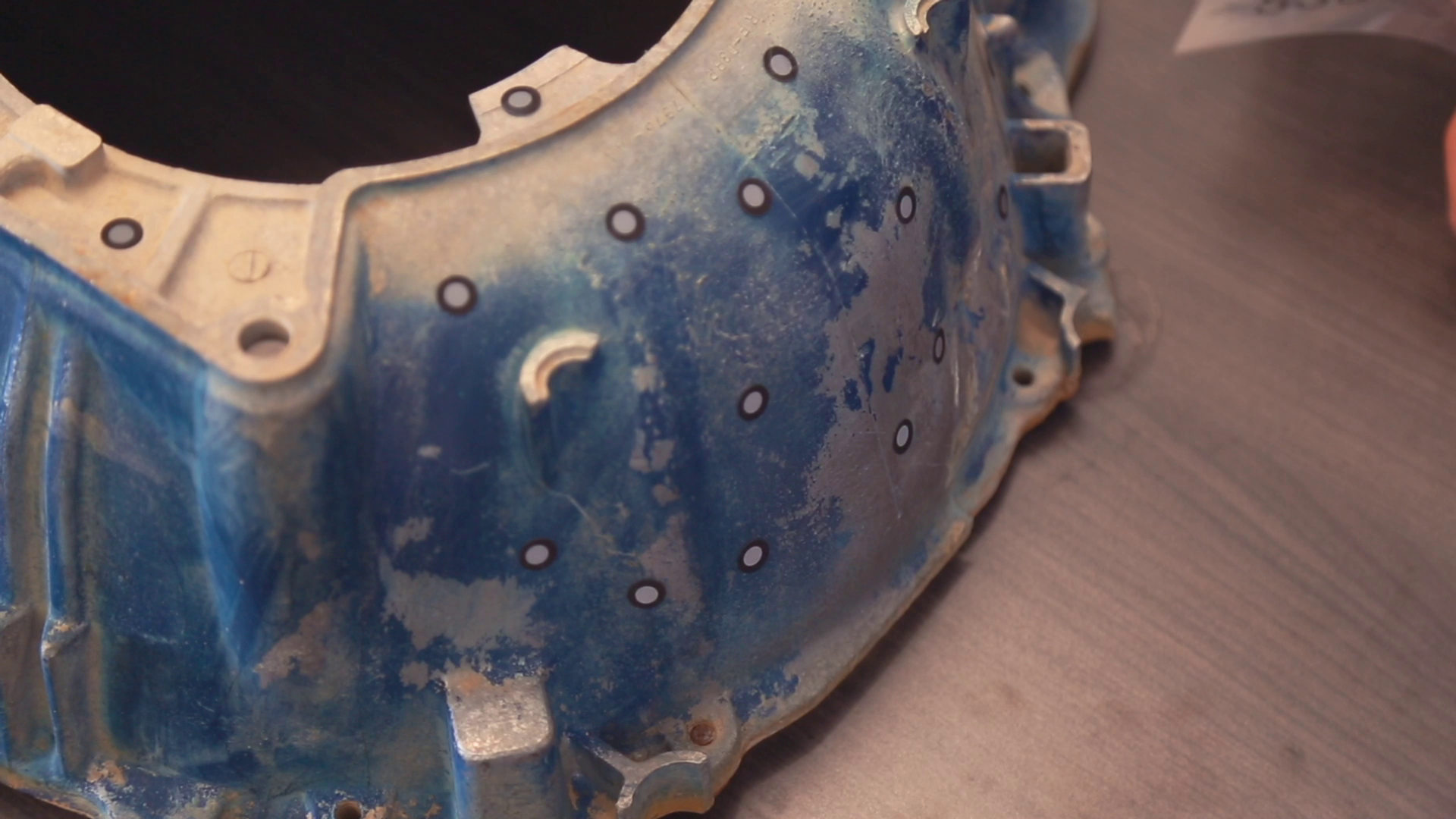
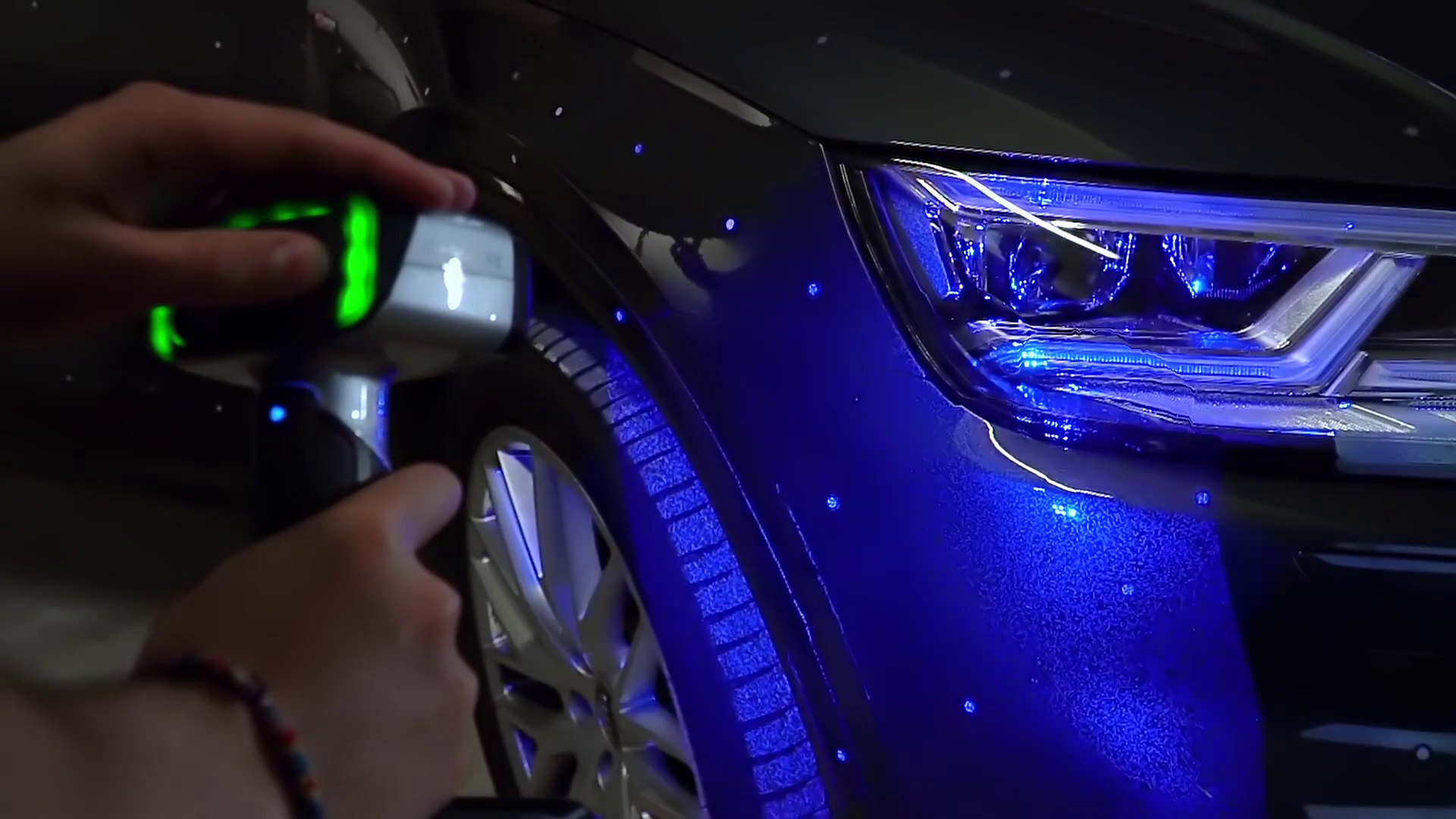
The HX has two scan modes, Rapid Scan and Laser Scan. Rapid scan will need minimal model preparation and will work for most parts, while the laser mode will be best for more accurate results and/or models with darker or shinier surfaces. To begin, we are going to place targets on the model. These targets are used when parts have minimal features or large smooth faces that lack features for the scanner to align itself to. Parts with repetitive features or patterns may confuse the scanner and will require targets placed randomly to help alignment.
Image
Image
  • To place the targets, all you’ll need to do is place them 2-6 inches apart in a random fashion.
  • A little trick here, you can also place targets on a table or board and place your object on it. The scanner will use these as reference points, achieving the same goal as placing them on the model without covering some of the details on the part.

Next, if your model has any shiny, dark, or translucent features you will need to dull them so that they can scan properly. We’re using the HX which is great for shiny and dark materials, and as a result doesn’t really any additional surface treatment.

  • There’s a number of products you can use here including baby powder, spray paint, and specialized sprays that disappear after a few minutes. You can find recommendations in the link below. To coat the part, all you’ll need to do is apply a small film to your model, just enough to dull the surface and that’s it!

2. Scanning
Image

For best results, avoid very bright rooms or having the scanner directly facing a light source. 

  • Start by clicking the play button to begin previewing and adjust brightness based on your environment.
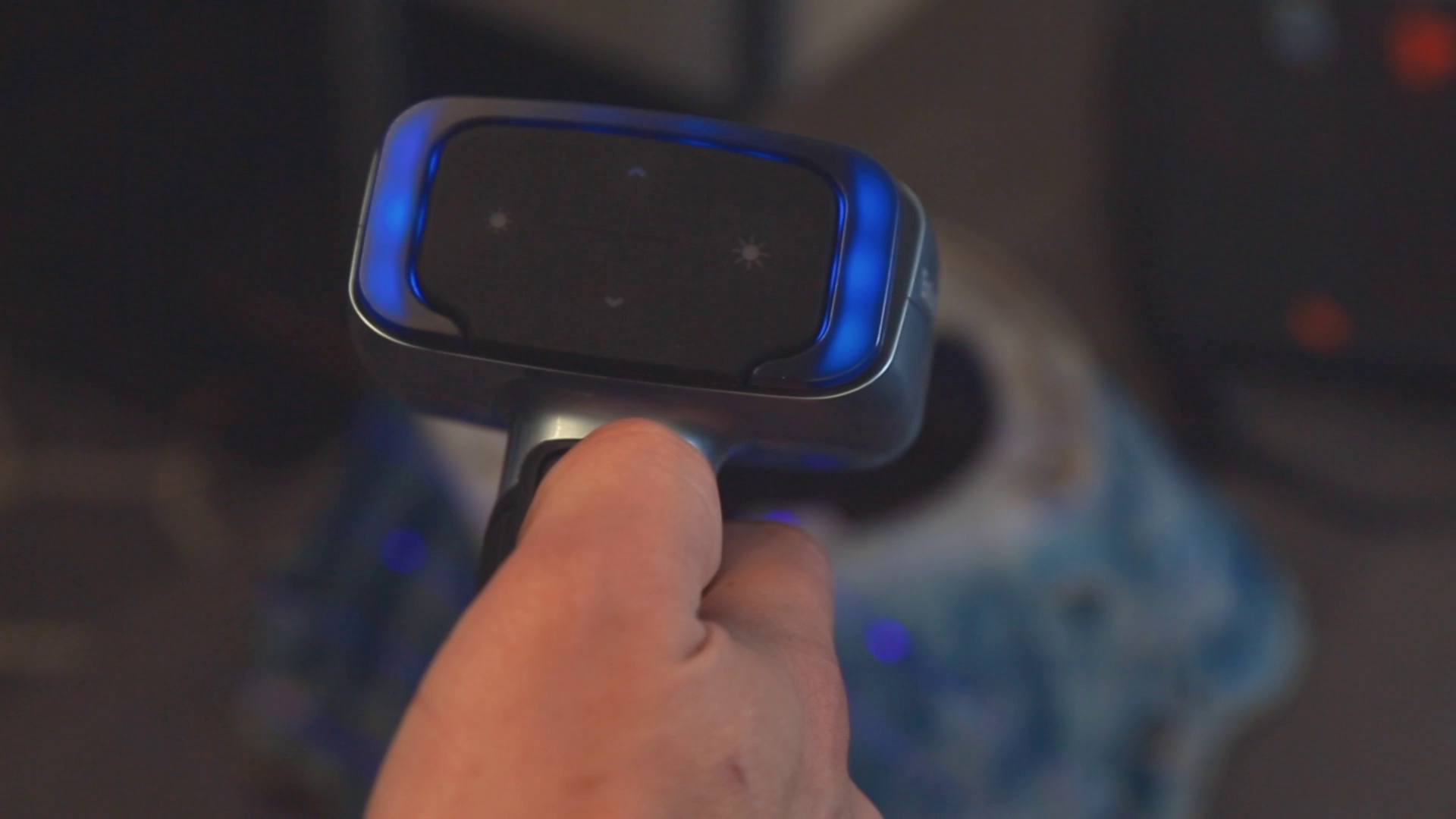
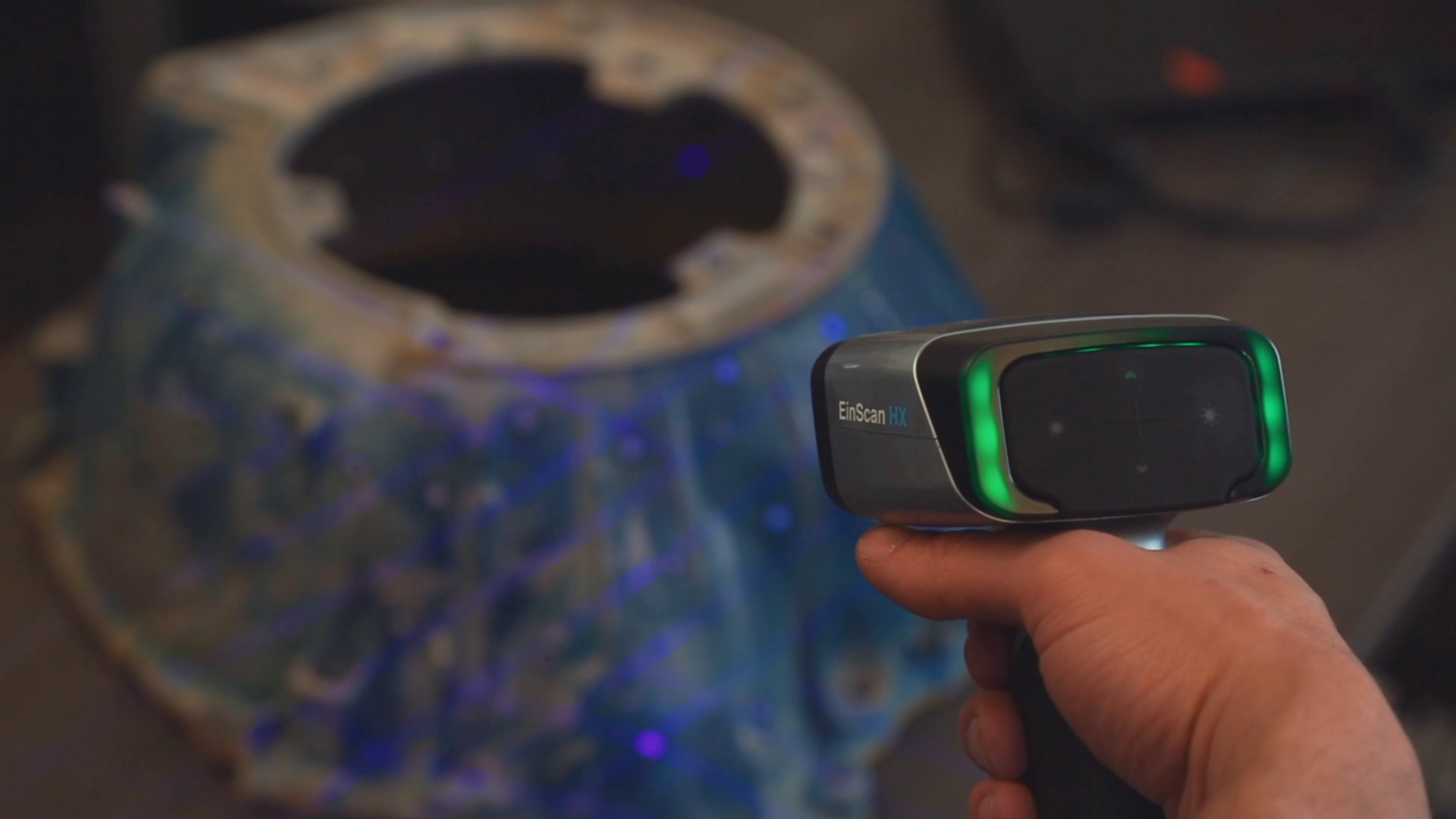
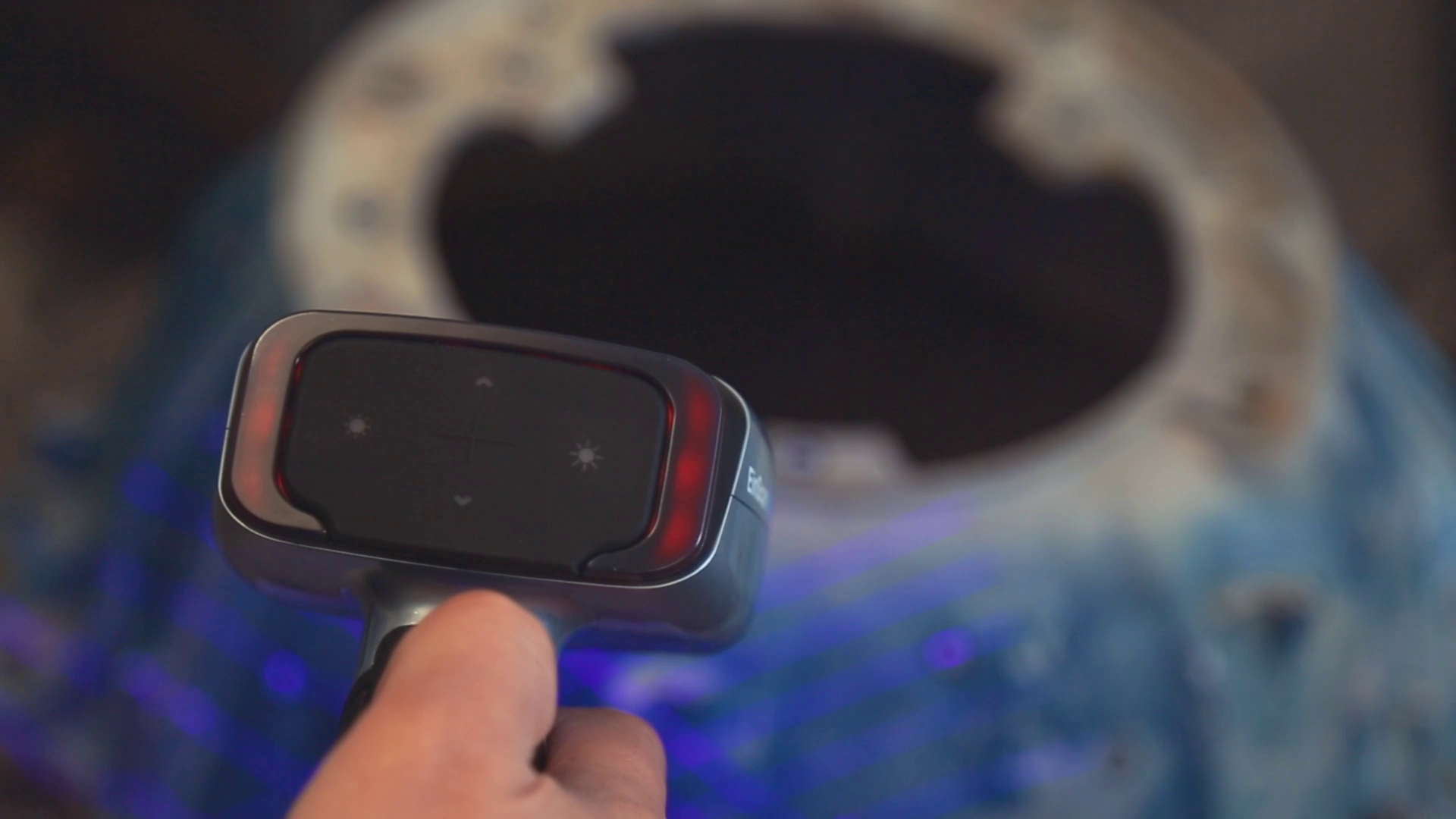
  • Use the indicator lights to maintain an optimal scanning distance. When you’re at the ideal distance, the indicator on the back of the scanner and in the software will both be green. If you go too far, the light and software will be blue and the software will make a noise. If you get too close, the indicator lights will turn red, also signaled by a noise.
Image

The blue light indicates you’re too far away from the object for proper scanning.
Image

Green is good! You’re right in the sweet spot regarding distance.
Image

The red light indicates you’re too close to accurately scan the object.

  • Now, click the play button again to begin scanning. Move the scanner around the object, rotating to help capture different angles. If you need to turn the object, pause the scanner and move it to a better position before resuming.

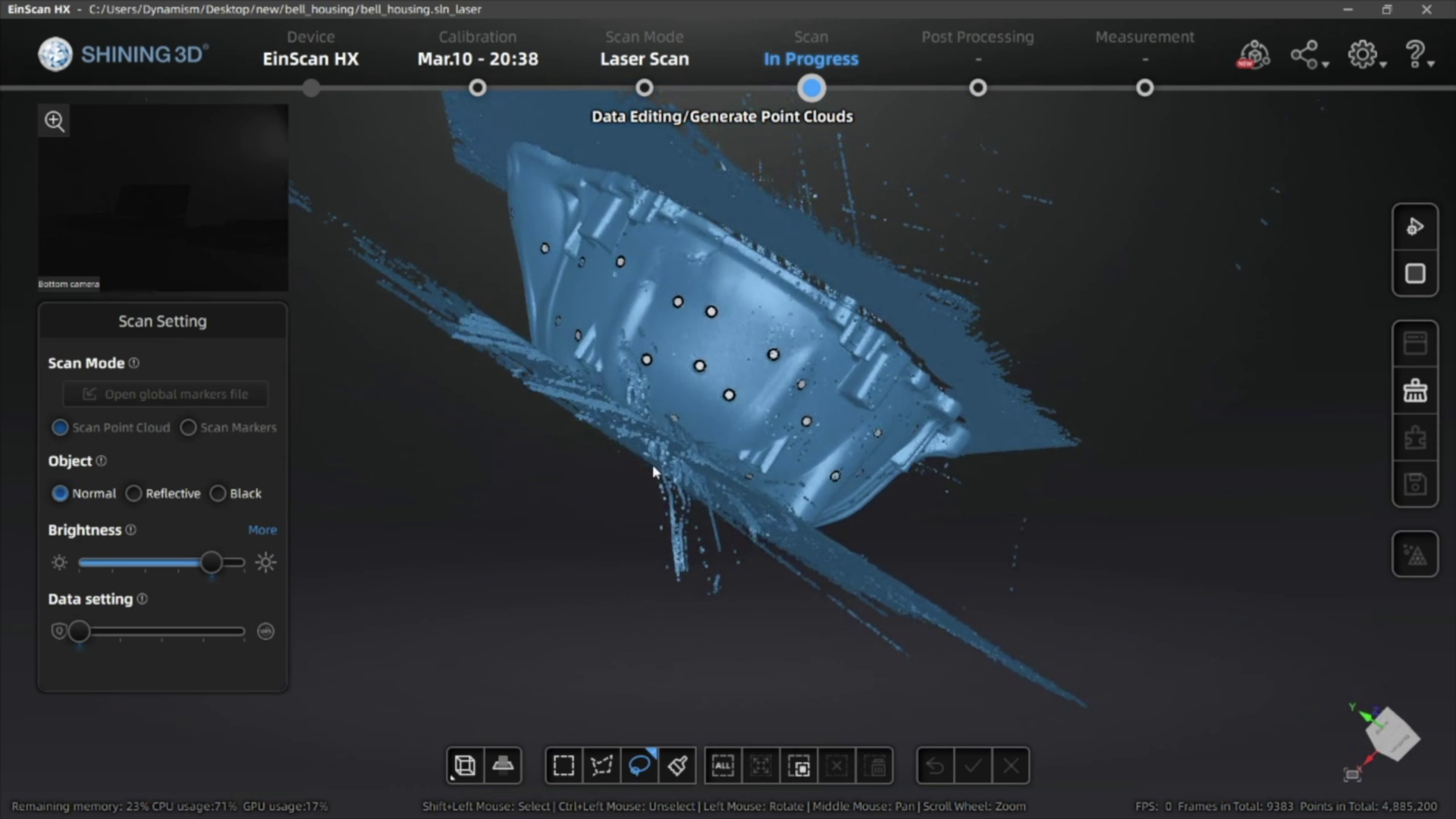
Once you have scanned your object and generated the point cloud data, you can then generate the mesh of your 3D scan. If you’re planning on using scan data for reverse engineering or QC you can export a non-watertight mesh, however for 3D printing you’ll need to make sure you get a watertight model for optimal results.

3. Mesh Cleanup

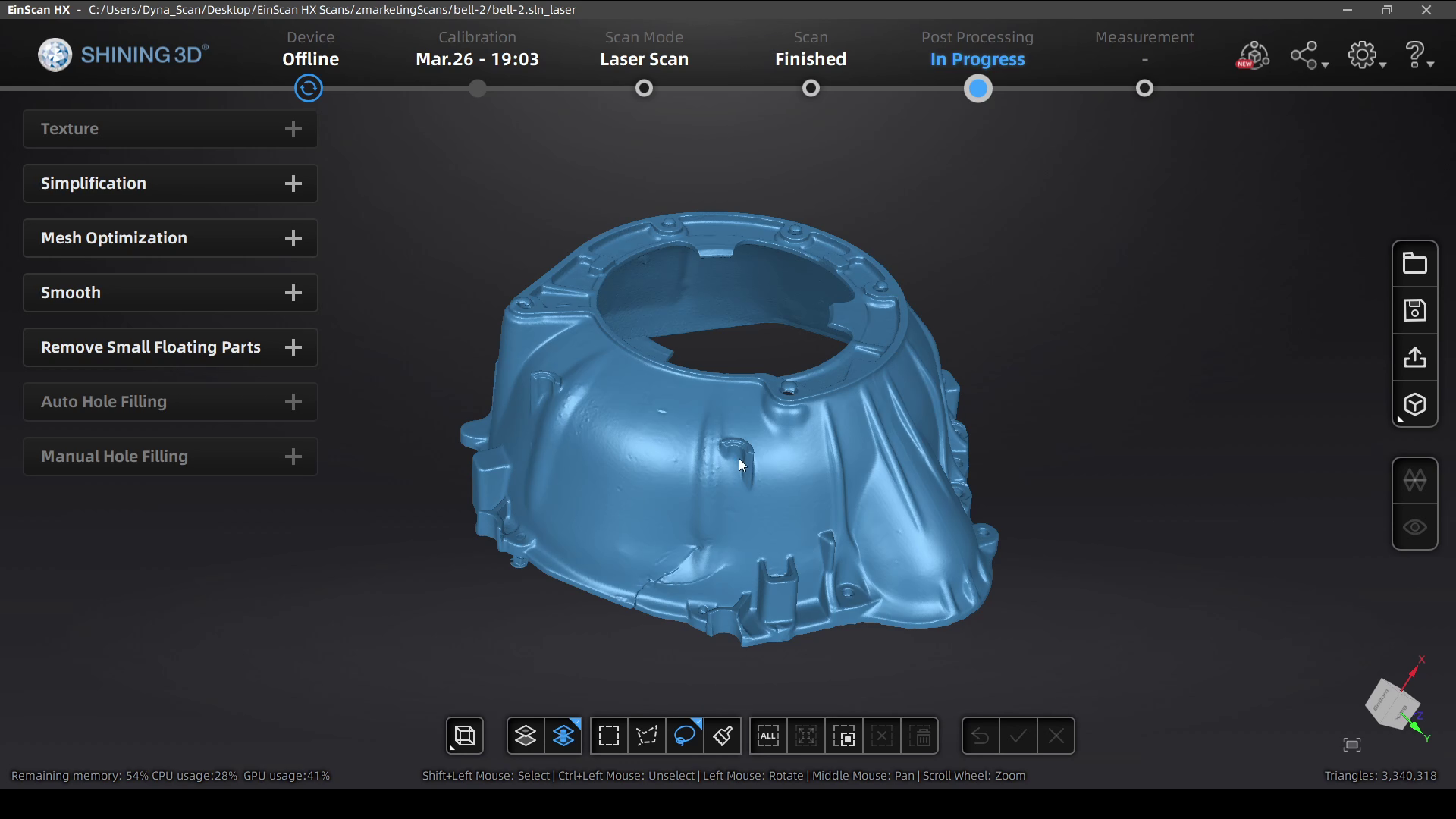
After you get your mesh data, there are a few different tools that available to help get your 3D model ready to be used. 

  • First, you can select and delete data that you don’t need (much like in the other steps in the scanning process).
  • If the model is not watertight, or you deleted portions of your watertight model, you can also fill the holes manually by selecting each one, or automatically if there are too many to select individually.
  • Another useful tool is the ability to simplify the object, which is great for reducing the file size while still keeping most of the part quality. You can usually reduce the file by 40-60% without affecting the surface quality of your scan, and it’ll help a lot when you import this 3D model into another program or share it with others.
Image
Image

Image

After you’re done with your edits, the mesh files can be exported as an STL, OBJ, 3MF, or PLY file for use in your reverse engineering process, measuring/QC workflow, or to send straight to your slicing software to 3D print!

Watch Our Video Overview Below

Get the Tools Seen in This Tutorial:
Image

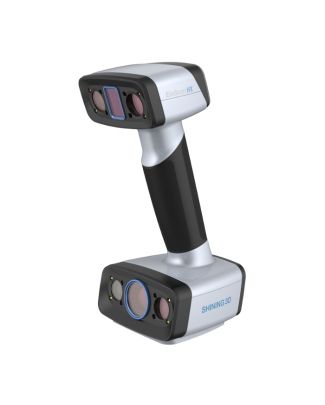
The HX is the best industrial scanner thanks to it’s specialized blue LED rapid scan mode and high accuracy Laser Scan mode leveraging tracking dots for best accuracy.

Image

The Einscan H uses Infrared technology which is ideal for scanning non-reflective surfaces and capturing details in hard to scan objects like hair.
Image

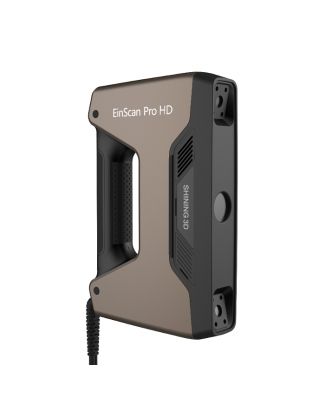
The Pro HD has a special blue LED light which helps at scanning slightly reflective or darker objects. An additional Color Pack camera can be added for full color scanning.
Categories
3D Scanning

How to Choose the Right 3D Scanner

Choosing The Right Handheld 3D Scanner

Whether you’re looking to reverse engineer products, ensure parts fit an assembly, or simply digitizing a part, choosing the right tool for the job is important. In this guidebook we cover all the 3D scanning basics you need to know including:

  • Accuracy & Resolution
  • Scan Size & Speed
  • Light Source
  • EinScan Product Comparison
  • More…