
Categories
3D Printing

Ultimaker 2+ Connect Unboxing and Setup

The Ultimaker 2+ Connect comes in reusable, durable packaging, specially designed to protect your 3D printer. Ensure you save your packaging, it will be required to send the machine in should it require warranty service and will ensure the safety of your machine when changing locations.


Follow the steps below to unpack your Ultimaker 2+ Connect:

01

Place the box on the ground.

02

Remove the plastic locking clips from the lower section of the box.

03

Holding the handles, lift the upper section of the box, and place it aside.

04

Take the quick start guide, safety and warranty information booklet, accessory box, and a spool of filament off the upper cardboard piece.

05

Remove the upper cardboard section and four foam pieces.

06

Carefully lift the Ultimaker 2+ Connect out of the bottom cardboard section and foam pieces.

07

Place the printer on a flat surface.


What Is Included With Your Printer

The Ultimaker 2+ Connect is supplied with several hardware accessories. Check if all these items are included before continuing:

Accessories
  • Glass plate
  • Spool holder
  • Power adapter and cable
  • Ethernet cable
  • USB stick
  • Calibration card
  • 0.4 mm nozzle
Consumables
  • PLA Silver Metallic 750 g
  • Glue stick
  • Oil
  • Grease
Tools
  • Hex screwdriver 2 mm
  • Hex key 2.5 mm
  • Nozzle wrench
  • Print head calibration aid
Documents
  • Quick start guide
  • Safety and warranty information

Get to Know Your Printer

Familiarize yourself with the different components of the Ultimaker 2+ Connect. Throughout our documentation, these terms will be used frequently.


Hardware Installation and Setup

01

Insert the spool holder into the back panel and push until it snaps into place.

Install spool holder
02

Open the front build plate clamps to insert the glass plate.

Open front build plate clamps
03

Slide the glass plate into the rear build plate clamps, then close the front clamps.

Install glass build plate
04

Connect the power cable to the printer with the flat side facing down and the other end to a power outlet.

Plug in printer

Categories
3D Printing

Ultimaker Support Resources

Categories
3D Printing

Ultimaker 2+ Connect Air Manager Installation

The Ultimaker 2+ Connect Air Manager gives you more confidence and setup flexibility. Designed to increase user safety, it removes up to 95% of ultrafine particles and shields users from hot and moving components. This is an excellent addition to any office or education-focused environment.


The Air Manager is delivered in separate components, which can be installed in a few easy steps.

01

Align the filter housing with the back of the Ultimaker 2+ Connect.

02

Guide the Bowden tube and print head cable into the slot.

03

Push down on the filter housing until it clicks firmly into place.

04

Gently push the filter completely into the filter housing, with the tab facing down.

05

Place the cover over the filter housing and align it with the top panel; ensure there are no gaps between the cover and the printer.

06

Connect the Air Manager cable to the port at the back of the Air Manager and ensure it is secure with the clip.

07

Guide the Air Manager cable around the left side of the spool holder.

08

Plug the cable into the OUT port at the back of the Ultimaker 2+ Connect.

09

Take the front enclosure and place the hinge profile on the front panel as shown.

10

Push the handle against the panel; the magnet will hold the front enclosure in place when closed.

The front enclosure must be installed when the Ultimaker 2+ Connect is printing. To remove the print, or for certain maintenance procedures, the front enclosure must be removed. This can be conveniently placed on the top of the printer, resting against the Air Manager cover.

Familiarize yourself with the different components of the Ultimaker 2+ Connect Air Manager. Throughout our documentation, these terms will be used frequently.

Categories
3D Printing

Ultimaker S3 / S5 Unboxing and Setup

The Ultimaker S3 and S5 come in reusable, durable packaging, specially designed to protect your 3D printer. Ensure you save your packaging, it will be required to send the machine in should it require warranty service and will ensure the safety of your machine when changing locations.


Follow the steps below to unpack your Ultimaker S3 / S5:


What Is Included With Your Printer

Accessories
  • Glass build plate
  • Spool holder with material guide
  • Power cable
  • Ethernet cable
  • USB stick
  • Print core AA 0.4
  • Print core BB 0.4
  • XY calibration sheet
  • Calibration card
  • Nozzle cover (3x)
Consumables
  • Tough PLA (750 g)
  • PVA (750 g)
  • Glue stick
  • Oil
  • Grease
Tools
  • Hex screwdriver 2 mm

Get to Know Your Printer

Familiarize yourself with the different components of the Ultimaker S5/S3. Throughout our documentation these terms will be used frequently.

1. Glass door(s)

2. Print head

3. Build plate

4. Build plate clamps

5. Touchscreen

6. USB port

7. Feeder 2

8. Bowden tubes

9. Feeder 1

10. Power socket and switch

11. Ethernet port

12. Double spoolholder with NFC cable

13. NFC socket


Hardware Setup Directions

Install the Bowden Tubes (Ultimaker S5 Only)

01

Remove the clamp clips from the print head.

Remove bowden clamp clip
02

Insert the Bowden tubes. The Bowden tubes connect to the corresponding numbers on the print head and feeder.

Install bowden tubes
03

Secure the Bowden tubes with the clamp clips.

Install bowden clamp clip
04

Fit the print head cable clips onto Bowden tube 2.

Attach bowden tube 2 to print head cable

Install and Connect the NFC Spool Holder

01

Insert the spool holder into the back panel and push until it snaps into place.

02

Secure the cable from the spool holder behind the cable clips in the back panel.

Install spool holder
03

Connect the cable to the NFC socket at the back of the printer.

Route and install NFC cable

Install the Glass Build Plate

01

Open the glass doors.

Open front doors
02

Open the two build plate clamps at the front of the build plate.

Open front build plate clamps
03

Gently slide the glass plate onto the build plate and ensure that it snaps into the build plate clamps at the back.

Install glass build plate
04

Close the two build plate clamps at the front to secure the glass build plate and close the glass doors.

Close front build plate clamps

Plug-In and Power On!

01

Connect the power cable to the power socket at the back of the Ultimaker S5.

02

Plug the other side of the cable into a wall outlet.

03

Turn on the power switch near the power connection on the printer.


A World of Resources Available to You

Whether you are new to 3D printing or an expert with years under your belt, you can never have too many resources. View our full support and resource section for various OEM’s here.


Next Steps

Loading filament

Before you can start printing on the Ultimaker S3/S5, you need to load materials into the printer. For the first use, it is recommended to use the spools of Tough PLA and PVA that come with the Ultimaker S3/S5.

Model Preparation and Slicing

Cura and other slicing programs transform a CAD model (STL, OBJ, 3MF) into a set of machine instructions that tell your printer how to create your model.

Removing Prints

After your print has completed, it will need to removed from the glass build plate. There are a few separate techniques to accomplish this, and each can have advantages depending on the specific part and whether any additional adhesives were used.

Categories
3D Printing

Recommended Maintenance For Ultimaker 2+ Connect

Maintenance Schedule

To keep your Ultimaker 2+ Connect in optimal condition, we recommend the following maintenance schedule, based on 1,500 printing hours per year. If you are printing more than 1,500 hours per year be sure to adjust your maintenance schedule accordingly.

Click the link for each support topic for detailed instructions in how to accomplish your task.


Categories
3D Printing

Ultimaker Error Codes and Solutions

Your Ultimaker printer has multiple sensors and safety features built in to help ensure your printer is operating correctly and safely. This page will show the common error codes along with links to guides on how to resolve the situation.

Ultimaker S Series Error Codes

Categories
3D Printing

Ultimaker S-Line Maintenance Recommendations

Maintenance Schedule

To keep your Ultimaker S-line printer in optimal condition, the following maintenance schedule is recommended and is based on an expected 1,500 printing hours per year. If you are printing more or less hours in a year, adjust your maintenance schedule accordingly.

Click on a link for directions on how to perform that specific piece of maintenance.


Categories
3D Printing

Slicing A Model File With Cura

General Overview

Cura and other slicing programs transform a CAD model (STL, OBJ, 3MF) into a set of machine instructions that tell your printer how to create your model. There are hundreds of settings that you can control within Cura. Everything from layer height, speed, fan settings, acceleration, jerk etc. Cura comes with pre-made profiles for ease of use and to ensure quality, and it is highly recommended starting with these for all of your prints.

In this support article, we will cover everything you need to know in order to get a print up and running using Ultimakers Cura Software.


Download and Install

Cura is available for Windows, Mac OSX, and Linux operating systems. Ultimaker updates Cura on a regular basis, so be sure to check back for the latest free updates. You can find the most recent version available for download here. After installing the program appropriate for your Operating System, launch the program to prepare your file.


Machine Addition and Selection

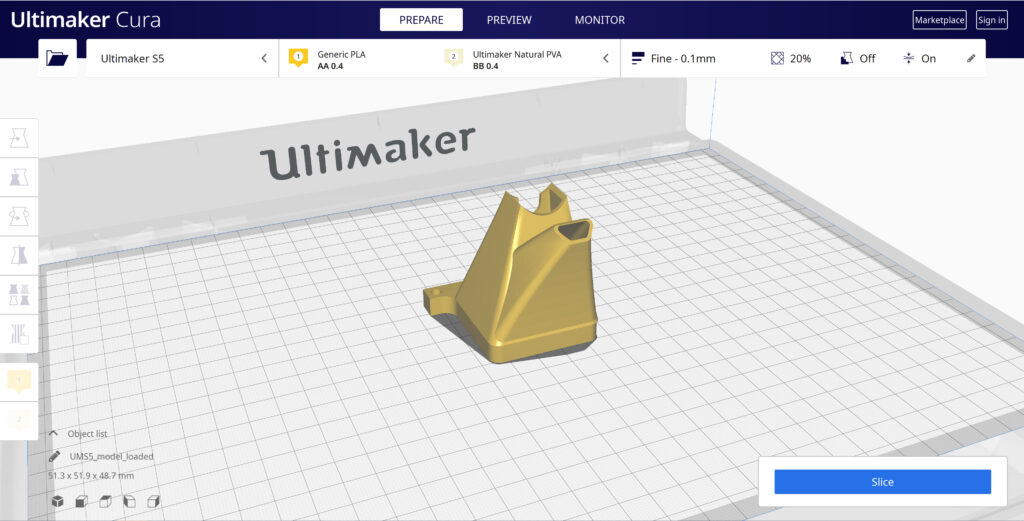
After launching the program, you will be prompted to select a machine. In this walkthrough, we will be using the Ultimaker S5. If you are using another Ultimaker product, please ensure to select that machine that corresponds with your product.

Should you ever need to add a new machine for slicing, you can gain access to this same menu by going to the top menu of Cura and going to settings > printer > add printer.
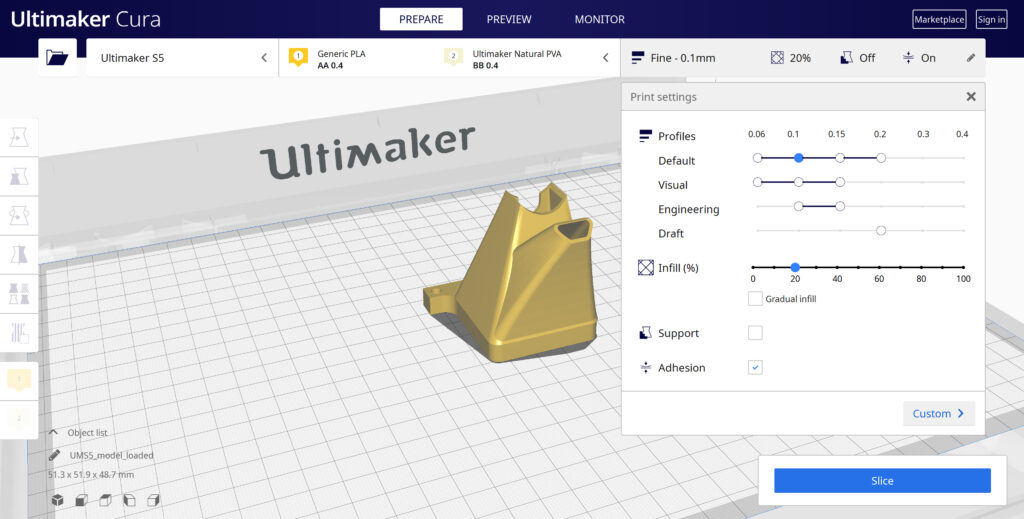

Print cores are compatible with specific material combinations, and it is important to have these properly selected each time you slice a model file.

At the top of the main Cura prepare screen, you will see which current materials and print cores you have selected. Clicking the drop-down arrow on the right hand side will allow you to change the cores as desired.

NOTE: If you have an incompatible material with your print core, a red box will appear and prevent you from slicing your file.


Loading Model and Print Orientation

You can load your print model in one of three ways:

  • In the top left corner, go to File > Open File(s) > Select Model File.
  • In the top left, you will see an “Open File” icon.
  • You can drag and drop your model file onto the build platform representation.

After your model has been loaded onto the platform, you will want to consider how to position it for ideal printing. In general, you will want a flat surface on the build plate to help with adhesion whenever possible.


Quick Profile Options

When first starting with your 3D printing journey, you will want to remain within the recommended settings as provided within Cura. These settings will help ensure reliability and quality for the vast majority of models you will print.

  • The Profiles section will allow you to set layer height based upon different factors such as visual look, engineering quality, or draft settings.
  • The Infill (%) section will allow you to determine how solid your model file is. 10-20% is perfectly fine for most non-load-bearing components.
  • Gradual Infill option will print your object with less infill lower down in the model and increase as the object prints to help support the upper skin of the print.
  • Support generates support structures to help your object print overhangs and steep angles. A general rule of thumb is your printer will not require supports if your model is between 45 and 90 degrees of the build plate.
  • Adhesion is turned on by default for most profiles and helps secure your object to the build plate. It does this by increasing your objects footprint, by printing lines around the base of your object.

Generate and Print Your File

After you have your model positioned and changed any settings you desire for your application, it is time to generate the print file and get it to your printer. The process of generating your machine directions is called “slicing” as it cuts your model into slices to generate the code.

Slicing Your Model File

  • Automatic Slicing can be enabled through Preferences > Configure Cura > Enable Automatic Slicing. When enabled, Cura will automatically begin to slice your model after each setting change. This can be an intensive load on your computer and is recommended to disable this for older computers.
  • When “Enable Automatic Slicing” is disabled, Cura will wait to generate your file until you select “Slice” from the lower right-hand corner.

Printing Your File

Ultimaker provides a direct printing option via USB or allows you to send your print file over the network.

  • Printing via USB will require you to save your print file to the piece of hardware, and manually insert it into your printer. Once inserted, you will be able to select and start your print file from the user interface on your printer.
  • Printing over network requires you to sign into your Cura connect account, and you can then send the print file directly to your machine. This can then be started through the user interface on the panel or through Cura connect interface within Cura.
Categories
3D Printing

Loading Filament Into Ultimaker S3/S5

Determine

Before you can start printing on the Ultimaker S3/S5, you need to load materials into the printer. For the first use, it is recommended to use the spools of Tough PLA and PVA that come with the Ultimaker S3/S5.


Load Material 2

01

Place the spool with material 2 (PVA) onto the spool holder and select Confirm. Make sure the end of the material points in a clockwise direction, so that the material can enter feeder 2 from the bottom

02

Wait until the Ultimaker S5 detects the material and Confirm

03

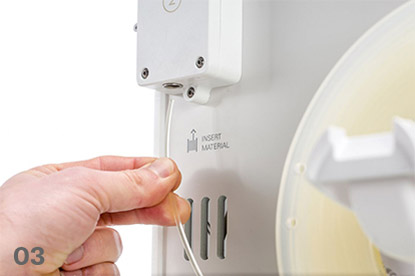
Insert the end of the material into feeder 2 and gently push it until the feeder grips it and the material is visible in the Bowden tube. Select Confirm to continue

04

Wait for the Ultimaker S5 to heat up print core 2 and load the material into the print head

05

Confirm when the new material extrudes consistently from print core 2

06

Wait a moment for print core 2 to cool down

Mount material spool for extruder 2 first
Insert material into feeder 2

Load Material 1

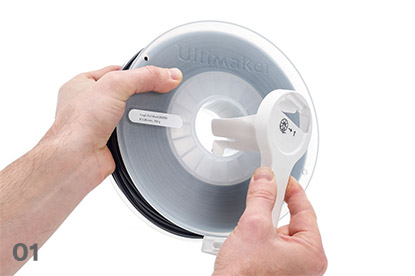
Material 1 will be put on the material guide first before placing it on the spool holder in order to avoid any tangling of the 2 materials during printing. Select material 1 from the list on the touchscreen, select Start, and follow the steps below.

01

Take the material guide and hold it with the outer part towards you

02

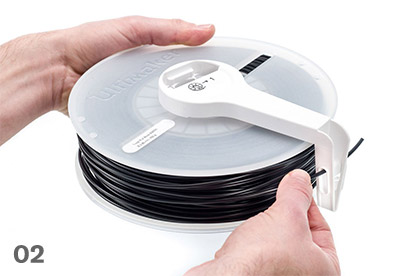
Place the material spool with material 1 (Tough PLA) on the material guide with the material in a counter-clockwise direction, and guide the end of the material through the hole in the material guide

03

Place the material guide with material 1 on it onto the spool holder behind material 2, and select Confirm

04

Wait until the Ultimaker S5 detects the material and select Confirm

05

Insert the end of the material into feeder 1 and gently push it until the feeder grips it and the material is visible in the Bowden tube. Select Confirm to continue

06

Wait for the Ultimaker S5 to heat up print core 1 and to load the material into the print head

07

Confirm when the new material extrudes consistently from print core 1

08

Wait a moment for print core 1 to cool down

Prepare the reel for installation

Route the filament through the guide

Mount the filament reel

Guide filament into the feeder
Categories
3D Printing

Material Station and Air Manager Installation

Material Station Installation

Mount the Ultimaker S5 to the Material Station

01

Carefully place the Ultimaker S5 on top of the Material Station

02

Insert a tube coupling collet in the bottom of each feeder of the Ultimaker S5

03

Insert the left Bowden tube of the Material Station into the left feeder, and the right Bowden tube into the right feeder

04

Secure the Bowden tubes with clamp clips

05

Place the spool holder cap into the hole of the Ultimaker S5’s spool holder


Air Manager Installation

Mount the Air Manager on the Ultimaker S5

01

Align the mounting bracket with the back of the Ultimaker S5

02

Guide the Bowden tubes and print head cable into both mounting bracket slots. Above feeder 2, make sure that the Bowden tube is placed in front of the print head cable

03

Gently push down on the mounting bracket until it clicks firmly into place

04

Align the bottom of the filter housing with the slots in the mounting bracket and push it into place

05

Gently push the filter completely into the filter housing

06

From the front of the printer, place the cover over the filter housing

07

Align the hinges with the mounting bracket and drop the cover into place


Plugin the connectors

01

Connect the Air Manager cable to the port at the back of the Air Manager

02

mounting bracket around the Air Manager cable and close it

03

Slide the stress relief clip upwards until it cannot go further to secure the cable in place

04

Connect the other side of the Air Manager cable to the UMB OUT port on the Material Station

05

Connect the Material Station cable to the UMB IN port on the Material Station and the other end to the UMB OUT port on the Ultimaker S5

06

Connect the power extension cable to the Ultimaker S5 and the Material Station

07

Connect the power cable to the Material Station and the other end to a power outlet

Proper cable and PTFE routing