Categories
Healthcare Manufacturing

Optimized Orthopedic Aids Created With SmartSlice for Cura

Validate Service Performance Using Intelligent Software

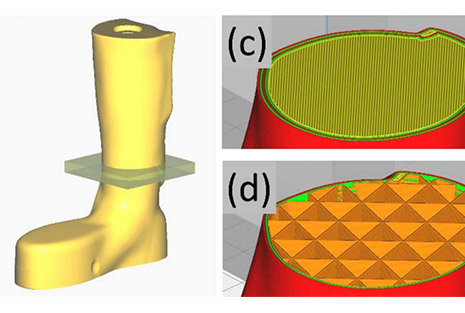
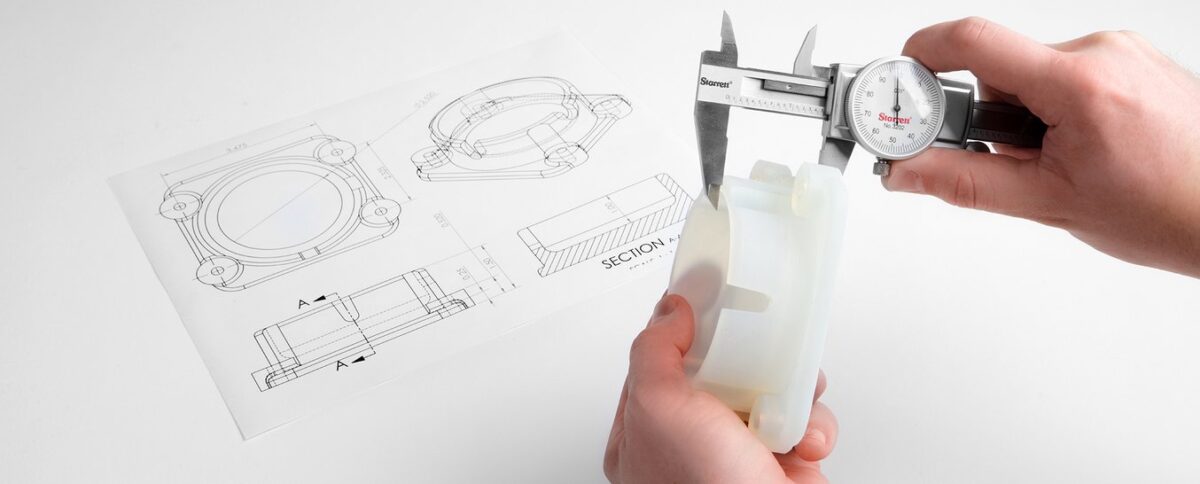
By integrating SmartSlice for Cura software into their current production process, adViva was able to save print time and materials, while improving the overall strength of their final mold. This unique piece of software uses Finite Element Analysis to validate slicing settings and selected material, while simulating forces that a part will encounter during usage. Download the case study now to learn their process of custom prosthetic generation, which details how they were able to:

  • Increase throughput utilizing existing equipment
  • Save 50 days of print time throughout a year-long cycle
  • Reduce material usage by over 13 kilograms in a year
  • More…
Categories
3D Printing

Slicing A Model File With Cura

General Overview

Cura and other slicing programs transform a CAD model (STL, OBJ, 3MF) into a set of machine instructions that tell your printer how to create your model. There are hundreds of settings that you can control within Cura. Everything from layer height, speed, fan settings, acceleration, jerk etc. Cura comes with pre-made profiles for ease of use and to ensure quality, and it is highly recommended starting with these for all of your prints.

In this support article, we will cover everything you need to know in order to get a print up and running using Ultimakers Cura Software.


Download and Install

Cura is available for Windows, Mac OSX, and Linux operating systems. Ultimaker updates Cura on a regular basis, so be sure to check back for the latest free updates. You can find the most recent version available for download here. After installing the program appropriate for your Operating System, launch the program to prepare your file.


Machine Addition and Selection

After launching the program, you will be prompted to select a machine. In this walkthrough, we will be using the Ultimaker S5. If you are using another Ultimaker product, please ensure to select that machine that corresponds with your product.

Should you ever need to add a new machine for slicing, you can gain access to this same menu by going to the top menu of Cura and going to settings > printer > add printer.


Print cores are compatible with specific material combinations, and it is important to have these properly selected each time you slice a model file.

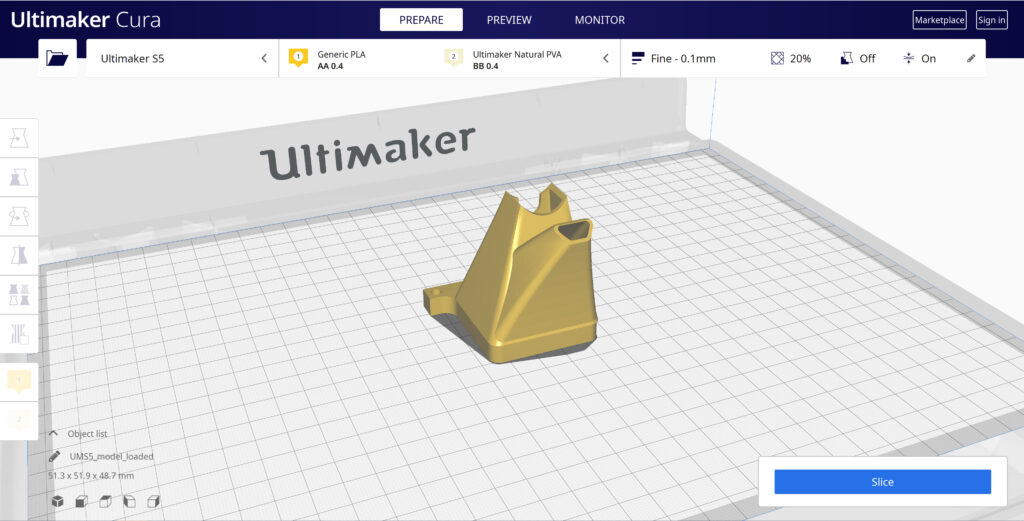
At the top of the main Cura prepare screen, you will see which current materials and print cores you have selected. Clicking the drop-down arrow on the right hand side will allow you to change the cores as desired.

NOTE: If you have an incompatible material with your print core, a red box will appear and prevent you from slicing your file.


Loading Model and Print Orientation

You can load your print model in one of three ways:

  • In the top left corner, go to File > Open File(s) > Select Model File.
  • In the top left, you will see an “Open File” icon.
  • You can drag and drop your model file onto the build platform representation.

After your model has been loaded onto the platform, you will want to consider how to position it for ideal printing. In general, you will want a flat surface on the build plate to help with adhesion whenever possible.


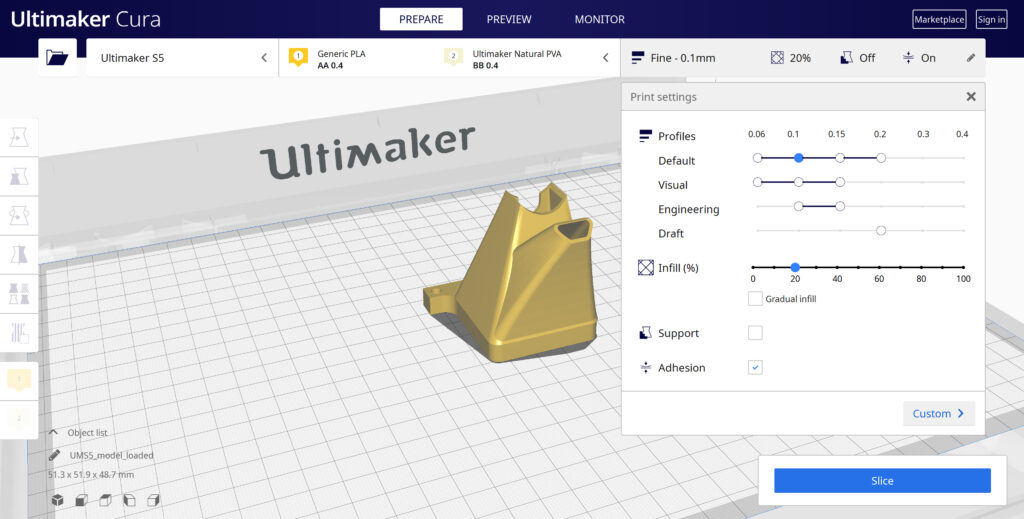
Quick Profile Options

When first starting with your 3D printing journey, you will want to remain within the recommended settings as provided within Cura. These settings will help ensure reliability and quality for the vast majority of models you will print.

  • The Profiles section will allow you to set layer height based upon different factors such as visual look, engineering quality, or draft settings.
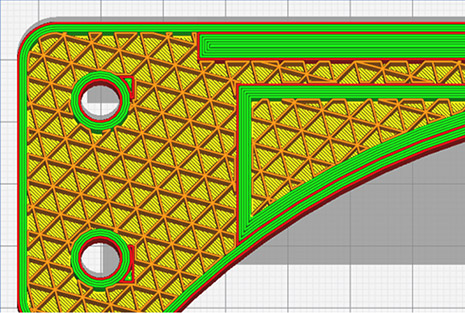
  • The Infill (%) section will allow you to determine how solid your model file is. 10-20% is perfectly fine for most non-load-bearing components.
  • Gradual Infill option will print your object with less infill lower down in the model and increase as the object prints to help support the upper skin of the print.
  • Support generates support structures to help your object print overhangs and steep angles. A general rule of thumb is your printer will not require supports if your model is between 45 and 90 degrees of the build plate.
  • Adhesion is turned on by default for most profiles and helps secure your object to the build plate. It does this by increasing your objects footprint, by printing lines around the base of your object.

Generate and Print Your File

After you have your model positioned and changed any settings you desire for your application, it is time to generate the print file and get it to your printer. The process of generating your machine directions is called “slicing” as it cuts your model into slices to generate the code.

Slicing Your Model File

  • Automatic Slicing can be enabled through Preferences > Configure Cura > Enable Automatic Slicing. When enabled, Cura will automatically begin to slice your model after each setting change. This can be an intensive load on your computer and is recommended to disable this for older computers.
  • When “Enable Automatic Slicing” is disabled, Cura will wait to generate your file until you select “Slice” from the lower right-hand corner.

Printing Your File

Ultimaker provides a direct printing option via USB or allows you to send your print file over the network.

  • Printing via USB will require you to save your print file to the piece of hardware, and manually insert it into your printer. Once inserted, you will be able to select and start your print file from the user interface on your printer.
  • Printing over network requires you to sign into your Cura connect account, and you can then send the print file directly to your machine. This can then be started through the user interface on the panel or through Cura connect interface within Cura.
Categories
3D Printing

SmartSlice for Cura On-Demand Webinar

In this 45 minute product demonstration with Dynamism and Teton Simulation, we review how the SmartSlice plugin for Ultimaker Cura enables users to:

  • Define load characteristics on parts and preview how loads will impact a printed part.
  • Implement simulation using Finite Element Analysis to ensure printed part performance.
  • Choose from multiple slicing configurations, allowing users to prioritize based on individual needs.
  • Reduce print times by up 45% while saving up to 40% on material usage.
  • Have confidence that printed parts will meet application requirements in specific project scenarios, reducing the overall number of iterations.

Watch the Free Webinar Below!

Want to give SmartSlice a try? Request a free trial.

“Teton’s Smart Slice plugin brings engineering grade part simulation to Ultimaker Cura users. Using the integration options of our open and pluggable platform it will make sure parts still meet their engineering criteria, but need less material and therefore saving valuable time and costs. The cooperation with Teton and the integration of their innovative solution are a prime example of how we will be continuously adding value for our professional customers.” Paul Heijmans – Senior VP Software at Ultimaker.

Image

SmartSlice is a plug-in for Ultimaker Cura that empowers users to perform validation and optimization of print parameters based on end-use requirements

Image

Professional and reliable composite-ready 3D printing from Ultimaker, in an efficient and accessible desktop format. Packed with the latest technology, it is as easy to use as it is powerful.

Image

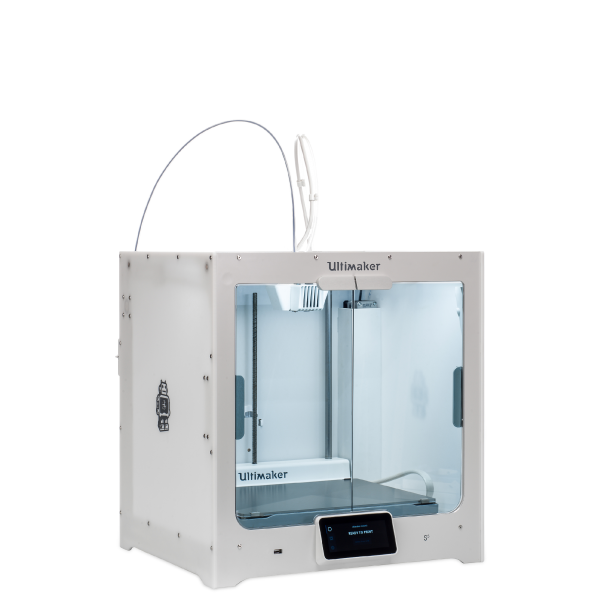
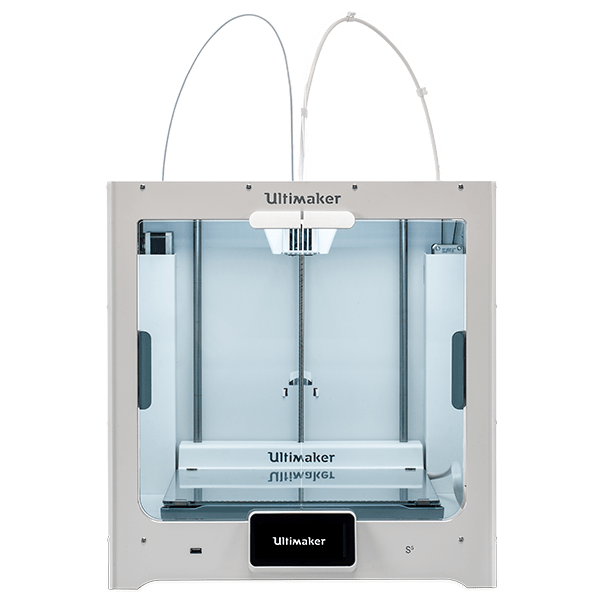
The Ultimaker S5 is an easy-to-use desktop 3D printer with a large build volume that delivers accurate, industrial-grade parts, time and time again.

Categories
Manufacturing

Reduce 3D Printing Iterations, Print Times, And Material Usage

Dynamism, a leader in 3D printing solutions, announced their expansion into Industry 4.0 software with the addition of Teton Simulation’s SmartSlice, a Cura Slicing Software plugin that uses cloud-based Finite Element Analysis to optimize print parameters in order to create parts that meet performance requirements while reducing printing times and material usage. “As a leading provider of 3D printing solutions, it is important that we provide end-to-end solutions for professionals”, CEO Douglas Krone said, “this includes 3D scanners, materials, coaching from 3D printing specialists, and now software.”

Start your 14 day free trial

Why businesses need Smart Slice – Less iterations, faster prints, and material savings.

When a part is 3D printed, there is a large amount of uncertainty in knowing if the part will perform as intended under end-use conditions. This leads to numerous build and break iterations resulting in excessive print times and wasted material. At the end of the day, this iterative process degrades two of the key advantages of 3D printing: reduced lead times and reduced waste. Combined with 3D printing’s recent massive growth in end-use applications, Smart Slice is poised to become an important solution for businesses wanting to increase their bottom line through applied 3D printing. 

“Our SmartSlice technology was built from the ground up to give 3D printer operators near instant feedback on the viability of their project. There is simply no other solution in the industry that can provide lightning-fast, accurate feedback on the ‘as printed’ state of a part. Plus, our optimization feature takes the guesswork out of determining the right slicing parameters. We do all the work, so the user doesn’t have to. All of this capability is provided within the slicer making it very easy to use.” says Mike Kmetz – CEO at Teton Simulation Software.

Who Can Benefit?

If you are using 3D printing for end-use parts, jigs and fixtures, concept validation, and/or manufacturing, SmartSlice’s part optimization is for you. Benefits are measured in days, material costs, and valuable engineering time both from failed iterations and straight print times for production parts. For example, in a test 3D printing a production run of 50 moderately sized levers, SmartSlice’s optimization was able to save 3.15 days in total print time per run while saving nearly 1kg of filament, all while delivering a part that met its performance requirements. For users unable to utilize cloud-based functionality due to IT limitations, local options are also available.

Image

Multiple optimization parameters allow end-users to ensure their part meets requirements, ending the build, break, iterate cycle inherent in mechanical 3D Printing.

Watch the Webinar

View our recorded webinar from March 11th, 2021 including a live demonstration of the software features and BASF case studies.

Want to give SmartSlice a try? Request a free trial.

“Teton's Smart Slice plugin brings engineering grade part simulation to Ultimaker Cura users. Using the integration options of our open and pluggable platform it will make sure parts still meet their engineering criteria, but need less material and therefore saving valuable time and costs. The cooperation with Teton and the integration of their innovative solution are a prime example of how we will be continuously adding value for our professional customers.” Paul Heijmans – Senior VP Software at Ultimaker.

Categories
3D Printing

Understanding 3D Printer Resolution

When you begin researching 3D printers one question often comes to mind: “What is the resolution of this 3D printer?” This is not an easy question to answer and has certainly led to failed expectations for the unsuspecting. So, before you let ‘resolution’ sway your next 3D printer purchase, let’s take a moment to define 3D printer resolution and some common misconceptions of the metric.

Just because a 3D printer data-sheet boasts a 1.25μ X/Y/Z resolution does not mean you can expect this from the finished part, nor does it guarantee a smooth surface finish.

What Is 3D Printing Resolution? It’s Not What You May Think.

Due to a lack of metric standardization in additive manufacturing, 3D printer resolution can go by a number of names including X/Y/Z resolution, positioning resolution, or theoretical resolution. In theory, this metric is a measurement of the smallest movement a 3D printer can achieve in each direction. Set by hardware and firmware, positional resolution is calculated by the number of ‘steps’ in a 360° rotation. These micro rotational movements are delivered by stepper motors and belts to drive the X, Y, and Z axes. The more steps, the finer movements a 3D printer can achieve. While this is important, manufacturers often provide a theoretical metric, unrealized by the user due to a number of factors including material shrinkage, belt tensioning, nozzle size, and more.

What You’re Probably Looking For…

For people new to 3D printing and even some tenured professionals, resolution is often misconstrued for one of two things, dimensional accuracy of the printed part and/or surface finish. These are both complex topics so let’s take a moment to analyze each. Keep in mind there are pros and cons to each 3D printing technology so this article should only be part of your overall assessment. If you need help, Dynamism’s 3D printing specialists are here to help.

Printed Part Dimensional Accuracy

Printed part dimensional accuracy is not solely defined by hardware. Instead, there are a number of influencing factors for each of the 3D printing technologies. Below, we break down influencing factors for two of the most common technologies.

Material Extrusion 3D Printers

For material extrusion 3D printers, the dimensions of your final part are influenced by positional resolution, nozzle size, die swell, belt tensioning, and shrink rate of the material. Material is a huge contributing factor here. Some materials have more die swell than others. Additionally, Styrene-based materials, like ABS, have high shrink rates which can result in parts smaller than intended. Thankfully, smaller nozzles can be added to most FFF 3D printers to achieve more accurate prints and smoother surface finishes but as a tradeoff, prints take longer to finish.

Resin 3D Printers

For stereolithography aka resin printers, dimensional accuracy is mainly determined by the material and laser spot size, or screen resolution for DLP 3D Printers. Some materials will shrink when undergoing the heat and UV curing process. Overall, SLA and DLP printers produce more accurate parts than material extrusion printers but as a tradeoff, most affordable market options have smaller build volumes and materials only emulate end-use materials, like ABS, Polycarbonates, and Polyamides. Exceptions do exist for build volume, like the Formlabs Form 3L and Nexa’s super fast NXE400.

Surface Finish

When looking for a smooth surface finish, SLA/DLP 3D printers provide exceptionally smooth finished prints. As mentioned above, the technology does come with some tradeoffs. For material extrusion printers, smoother surface finishes can be achieved with smaller nozzles and finer layers. Furthermore, some materials can be vapor smoothed, providing a surface finish that nears that of resin 3D printers.

Now That We’ve Settled That…

As you continue your 3D printer shopping journey, do not let 3D printer resolution sway your decision, as this metric is often theoretical and limited by other factors such as materials. If you need help selecting the right 3D printer, Dynamism’s 3D printing specialists are here to help. With a brand agnostic approach and large selection of technologies and brands, our goal is to get you the best possible solution for your application.


Categories
3D Printing

Ultimaker Essentials Software Now Available

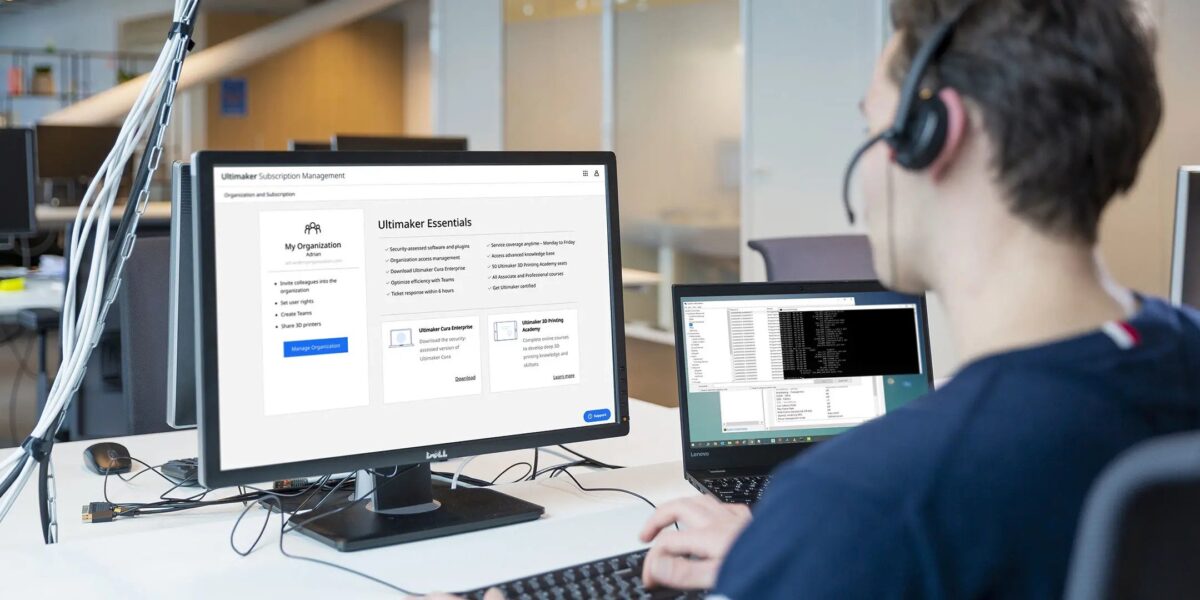
We are delighted to announce Ultimaker Essentials is now open for general access. Ultimaker Essentials is our package of Ultimaker software tools that enables you to scale a 3D printing platform across your business, delivering enterprise-grade stability and control.


The occasion is a major milestone for Ultimaker and we couldn’t be more proud. By adopting Ultimaker Essentials, our users will be able to leverage the full power of the Ultimaker ecosystem, which encompasses hardware, materials, and software.

essentials-

What’s new for Ultimaker Essentials?

Ultimaker Essentials now offers several newly built features. They include:

Better organization and user access management. When it comes to who can 3D print – you decide. Via the organization management page in Ultimaker Digital Factory, Ultimaker Essentials enables admins to invite users, give them admin rights, or remove 3D printing access entirely.

Firmware firewall. A firmware firewall increases your 3D printer’s security by allowing only cloud traffic from Ultimaker Digital Factory and blocking uncontrolled access via the local network. This reduces the chance of malicious activity.*

New verified plugins. Ultimaker Essentials subscribers will enjoy a range of verified plugins for Ultimaker Cura, including the new Teton Simulation Smart Slice.

Service and learning levels. Choose between Light, Standard, and Advanced levels of service and learning to customize Ultimaker Essentials to your business’ needs. Access more advanced e-learning courses and increase your support coverage to ramp-up 3D printing adoption and reduce business disruptions.

*This feature is coming soon

What else do you get?

An Ultimaker Essentials subscription offers major benefits across the end-to-end digital manufacturing workflow. Its main features include:

  • Ultimaker Cura Enterprise. Ultimaker Cura Enterprise makes software distribution and management easy. Designed to meet your IT department’s expectations, distribute a tested, stable, and more secure slicing application to anywhere employees need to work – with reduced risk to your infrastructure


Cura-Remote-printing
Ultimaker Cura Enterprise is tested, stable, and more secure
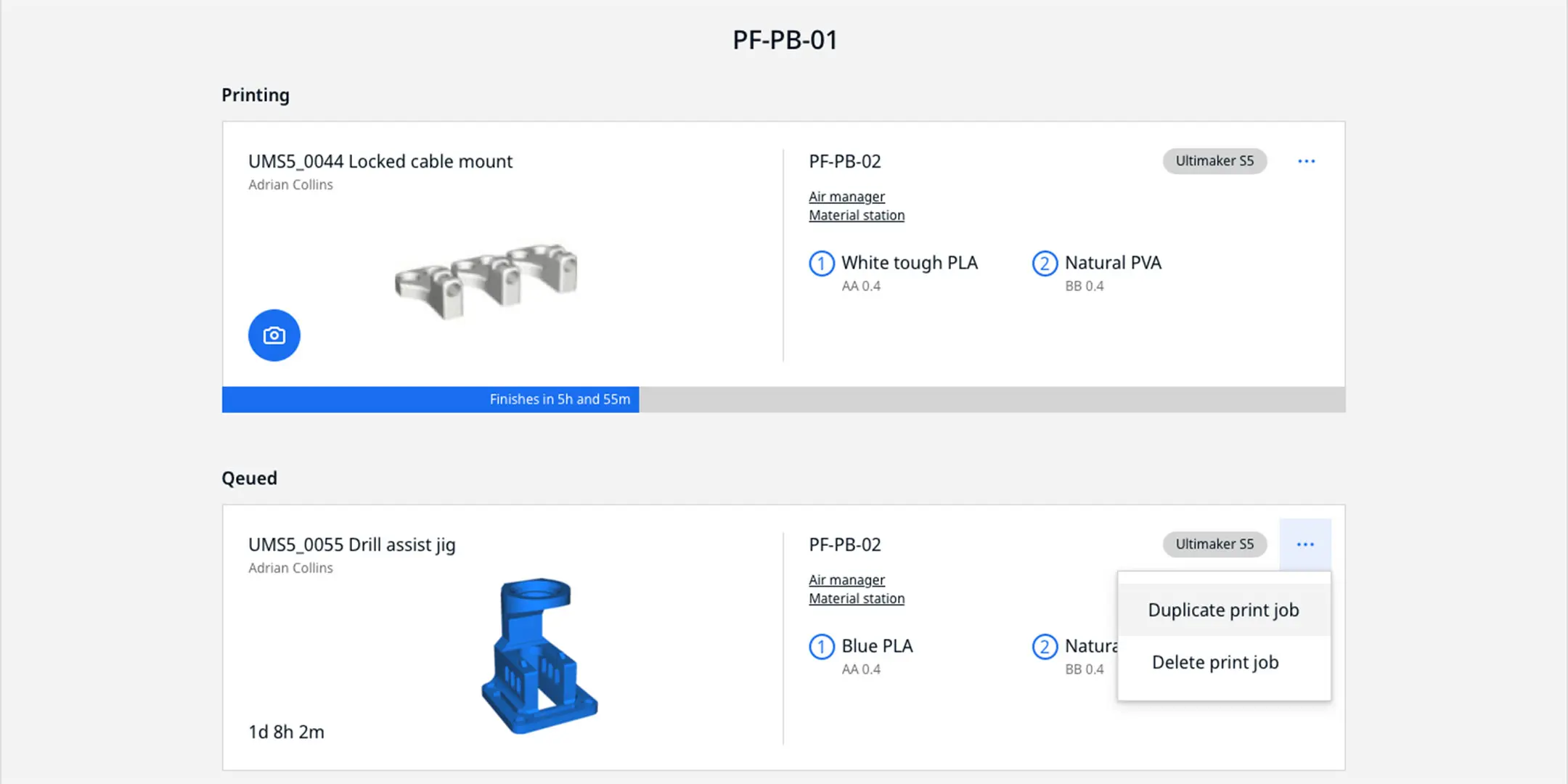
  • Ultimaker Digital Factory. Ultimaker Digital Factory provides powerful cloud-based tools for easy remote management of Ultimaker 3D printers, teams, and software. Now you can deliver a scalable 3D printing workflow that drives innovation across your network


Print-queue
Ultimaker Digital Factory’s print queue enables you to remotely monitor print progress
  • Ultimaker Marketplace. Empower users to 3D print the way they want through a controlled version of Ultimaker Marketplace. Only verified plugins and third-party material profiles are allowed. And this maintains a higher level of security and stability of your IT infrastructure. Plus, gain access to Ultimaker Essentials-only plugins such as Teton Simulation’s Smart Slice

  • Ultimaker 3D Printing Academy.  No matter the size of your team, upskill application engineers, 3D printer operators, and IT admins with expert e-learning to achieve your team’s success potential. Access our full Ultimaker 3D Printing Academy course library of Associate and Professional* knowledge – with certification exams for each role.

  • Support. Get direct support during business hours for software queries or browse a comprehensive knowledge base

*Professional-level courses coming late 2020

Ultimaker Essentials packages start at $300 per year (excluding taxes) per organizational unit. Want to learn more? Use the button below to compare the available plans.